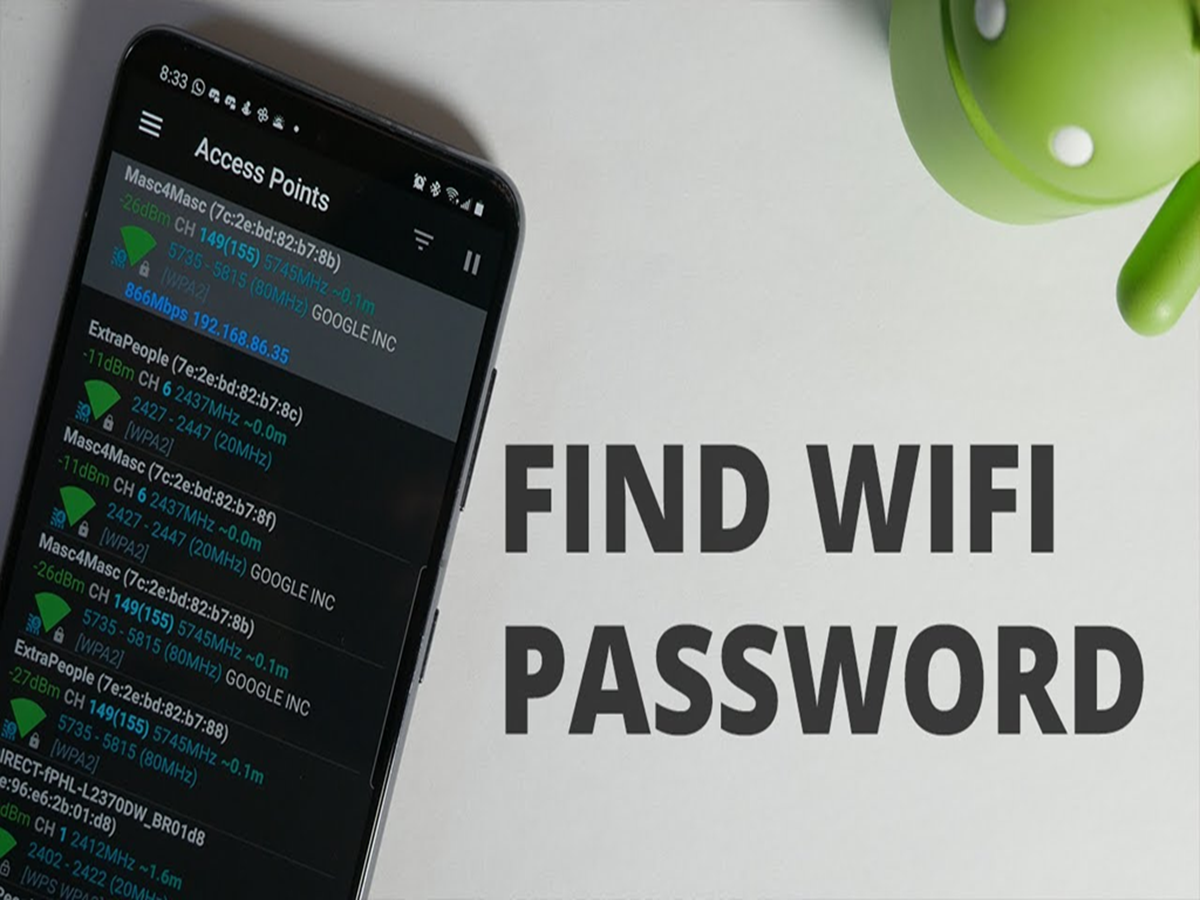
It's a common situation—you buy a new phone, a guest asks for your Wi-Fi password, or you need to connect another device, but you can't remember the password. Fortunately, you don't always have to reset your router to recover it.
Here are some simple ways to find your Wi-Fi password.
1. Check the QR Code on Your Phone
Many Android phones and iPhones allow you to share a Wi-Fi network using a QR code. If your phone is already connected to the network, you can generate a QR code that others can scan to connect instantly.
2. Look at the Router Sticker
Many internet providers print the default Wi-Fi name (SSID) and password on a sticker attached to the back or bottom of the router. If you haven't changed the password, this is the quickest solution.
3. Check Saved Networks on Your Phone
If your smartphone is already connected to the Wi-Fi network, you can usually view or share the saved password from the Wi-Fi settings after verifying your identity with your fingerprint, face unlock, or device PIN.
4. Use a Connected Laptop or PC
If your Windows or Mac computer is already connected to the Wi-Fi network, you may be able to view the saved password through the system's network settings without changing anything on the router.
5. Log In to the Router's Settings
If you know your router's administrator username and password, you can access its settings page to view or change the Wi-Fi password. Be careful not to modify other settings unless you know what they do.
6. Check Your Internet Provider's App
Many broadband providers now offer mobile apps that let customers manage their Wi-Fi network. Some apps even allow you to view or change your Wi-Fi password without logging into the router manually.
7. Reset the Router Only as a Last Resort
If you've forgotten both the Wi-Fi password and the router's administrator password, a factory reset may be the only option. However, this will erase all custom settings, so it should only be done when other methods don't work.
Bonus Tip: Save Your Password Securely
Once you've recovered your Wi-Fi password, store it in a trusted password manager or write it down in a safe place. This can save you time the next time you need to connect a new device.