TECH
Your Smartphone Camera Can Now Scan Documents Without a Scanner: 7 Hidden Features You Should Start Using
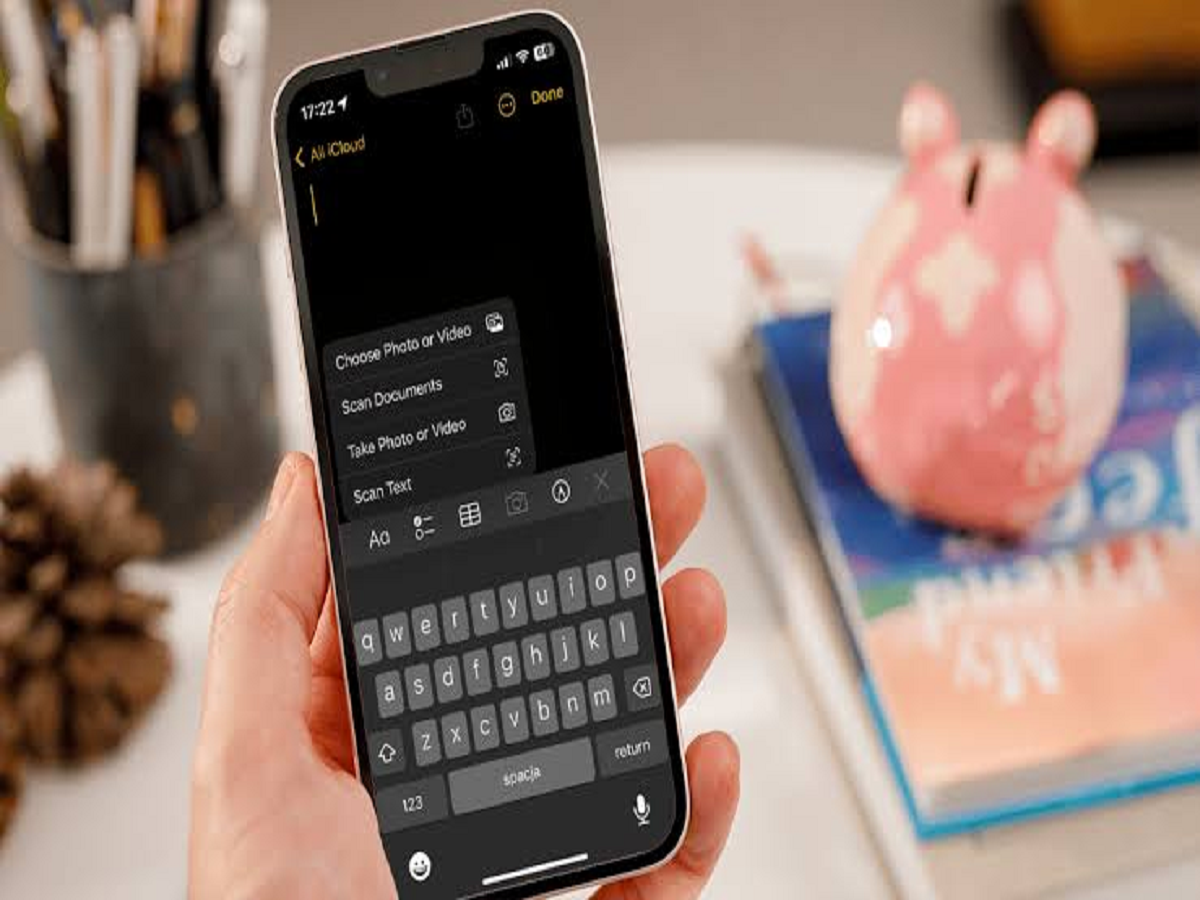
Smartphone cameras are no longer limited to taking photographs and recording videos. Modern Android phones and iPhones come with powerful document-scanning features that can turn ordinary paper documents into clean, professional-looking digital files.
Whether you need to scan an Aadhaar card, PAN card, bank statement, office document or handwritten notes, you can do it directly from your smartphone without installing an additional scanner application.
Here are seven useful document-scanning features that many smartphone users overlook.
1. Scan Documents Directly Using Your iPhone
iPhone users can scan documents through Apple's built-in Notes application.
Follow these steps:
-
Open the Notes application.
-
Create a new note.
-
Tap the attachment or camera option.
-
Select 'Scan Documents'.
-
Position your camera over the document.
-
Allow the phone to detect the document edges automatically.
-
Save the scanned document as a PDF.
You can also manually adjust the corners if the automatic detection does not work properly.
2. Use Google Drive to Scan Documents on Android
Android users can scan documents directly through Google Drive.
Open Google Drive, tap the camera or scan option, and point your phone towards the document.
The application can automatically detect the document boundaries, crop unnecessary areas and improve readability.
Once scanned, you can save the document as a PDF in your Google Drive account.
3. Convert Printed Documents into Editable Text
One of the most useful smartphone scanning technologies is Optical Character Recognition (OCR).
OCR identifies printed or handwritten characters in an image and converts them into searchable digital text.
For example, if you photograph a printed invoice, OCR-supported applications can recognise the text and help you copy important information without typing everything manually.
This feature is particularly useful for students, office employees and people who regularly work with invoices, bills and paperwork.
4. Remove Shadows and Improve Document Quality
Photographing documents under poor lighting can create unwanted shadows, reflections and uneven 's built-in Notes or Google Drive features before downloading a separate scanner application. You may already have all the tools you need.