TECH
Your Wi-Fi Router Could Be the Weakest Link in Your Cybersecurity: 7 Settings You Should Check Today
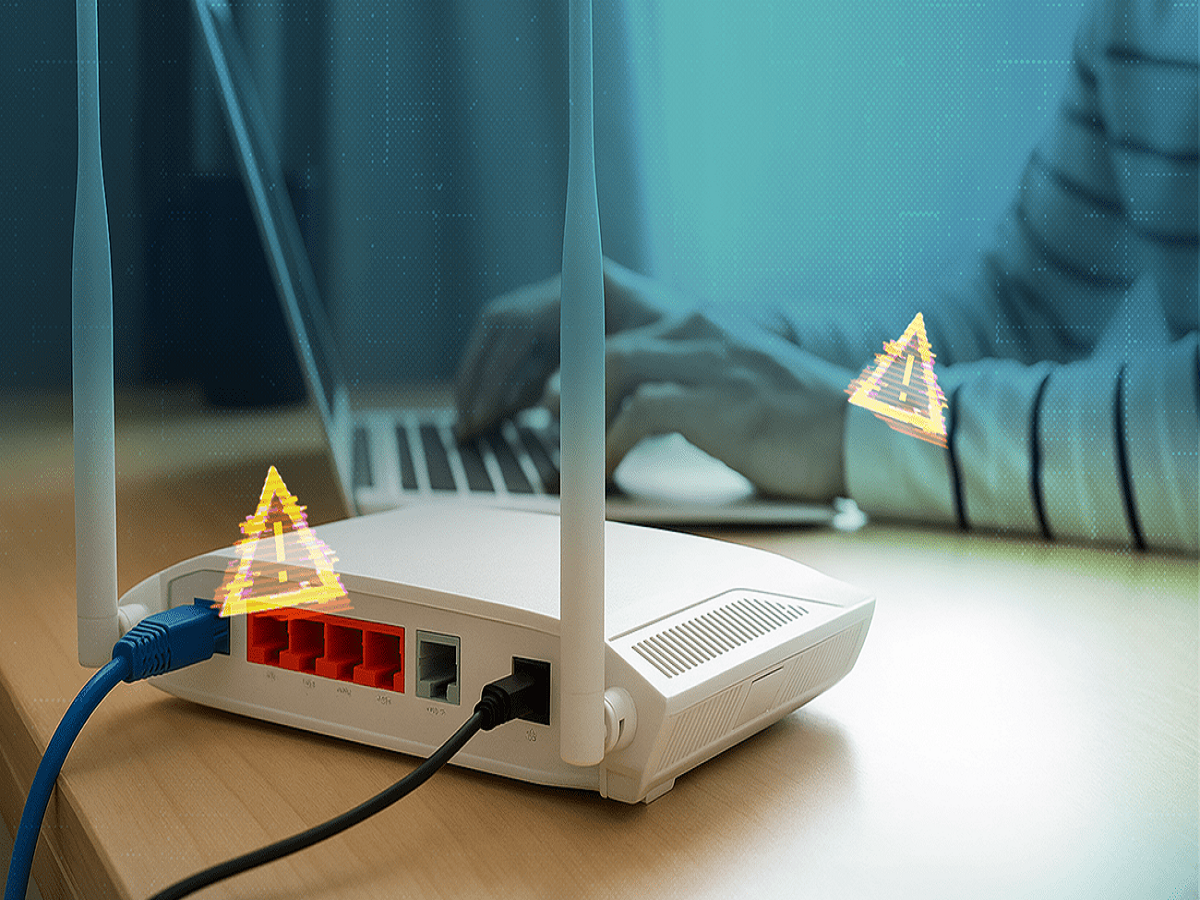
Most people protect their smartphones and laptops with passwords, fingerprint locks and security updates. However, one important device often goes unnoticed: the Wi-Fi router.
Your router connects almost every internet-enabled device in your home, from smartphones and laptops to smart speakers and security cameras. If it is poorly secured, it can expose your network to unauthorised access, suspicious activity and potential privacy risks.
The good news is that a few simple changes can make your home Wi-Fi significantly safer.
1. Change the Default Router Password
Many routers come with a default administrator username and password. If these credentials remain unchanged, someone who knows the default details may be able to access the router's settings.
Create a strong, unique administrator password that is different from your Wi-Fi password. Avoid using your name, mobile number, date of birth or other easily guessed information.
Remember that the router's administrator password and the password used to connect devices to Wi-Fi serve different purposes.
2. Use WPA3 or WPA2 Security
Your Wi-Fi encryption setting helps protect information travelling between your devices and router.
Open your router's settings and look for the wireless security option. Choose WPA3-Personal if your router and devices support it. Otherwise, WPA2-AES is generally a suitable alternative.
Avoid outdated security protocols such as WEP and, where possible, WPA or WPA2-TKIP.
If your router offers only obsolete security options, consider upgrading to a model that receives modern security updates.
3. Disable WPS If You Do Not Need It
Wi-Fi Protected Setup, commonly known as WPS, is designed to make connecting devices easier. Some routers support connection through a physical button or a PIN.
However, certain WPS implementations, particularly vulnerable PIN-based systems, can create additional security risks.
If you do not use WPS, consider disabling it in your router settings. You can still connect devices by entering your Wi-Fi password manually.
4. Update Your Router's Firmware
A router is essentially a small computer, and its software can contain security vulnerabilities.
Manufacturers sometimes release firmware updates to fix these weaknesses, improve stability and add features. Unfortunately, many users leave their routers running outdated software for years.
Check the manufacturer's official website or your router's administration panel for firmware updates. Enable automatic updates if the feature is available and reliable.
If the manufacturer no longer provides security updates for your router, replacing it may be a sensible long-term investment.
5. Create a Separate Guest Network
When friends, relatives or visitors need internet access, you do not necessarily have to give them access to the same network used by your personal devices.
Many modern routers allow you to create a guest Wi-Fi network with a separate password.
Where supported, configure the guest network to prevent visitors from accessing your main network's devices. This can help protect shared files, printers and other connected equipment.
You can also use a separate network for smart home devices that do not need direct access to your computers or personal files.
6. Check Which Devices Are Connected
Have you ever wondered how many devices are connected to your home Wi-Fi?
Your router's administration page or companion app may display a list of connected devices, including phones, laptops, televisions and smart appliances.
Review the list periodically. If you notice an unfamiliar device, do not immediately assume that someone has hacked your network. Device names can be unclear, and some phones use private Wi-Fi addresses.
First, identify your own devices. If a connection remains suspicious, change your Wi-Fi password and reconnect your trusted devices.
7. Disable Remote Administration and Unnecessary Features
Some routers allow administrators to access their settings from outside the home network. This can be useful in certain situations, but it also creates another point that must be secured.
If you do not need remote administration, disable it. Review other features, including unnecessary port forwarding and internet-facing management services.
You should also avoid enabling features you do not understand simply because they appear in the settings menu.
For advanced users, disabling unnecessary Universal Plug and Play (UPnP) functionality may reduce the risk of devices automatically opening network ports. However, some applications and games may depend on it, so check your requirements before making the change.
A Simple Wi-Fi Security Checklist
Before finishing, make sure you have completed these essential steps:
-
Change the default administrator password.
-
Use WPA3 or WPA2-AES encryption.
-
Install available firmware updates.
-
Disable WPS if it is not needed.
-
Set up a guest network for visitors.
-
Review connected devices regularly.
-
Turn off unnecessary remote access features.
Does Hiding Your Wi-Fi Name Make It More Secure?
Some users hide their Wi-Fi network name, also called the SSID, believing this makes their network invisible to hackers.
However, hiding the network name is not a substitute for strong encryption and a secure password. The network can still be detected through other means, and hiding it may make connecting certain devices less convenient.
A properly configured router with modern encryption and updated software is a more effective foundation for security.
The Bottom Line
Your Wi-Fi router is the gateway between your home devices and the internet. Securing it can help reduce the risk of unauthorised access and protect the devices that depend on your connection.
You do not need advanced technical knowledge to improve your network's security. Start with a strong administrator password, modern encryption and regular software updates. These simple habits can make a meaningful difference to your digital safety.