TECH
iPhone Warranty Check: When will your iPhone's warranty expire? Check the full details from your mobile phone
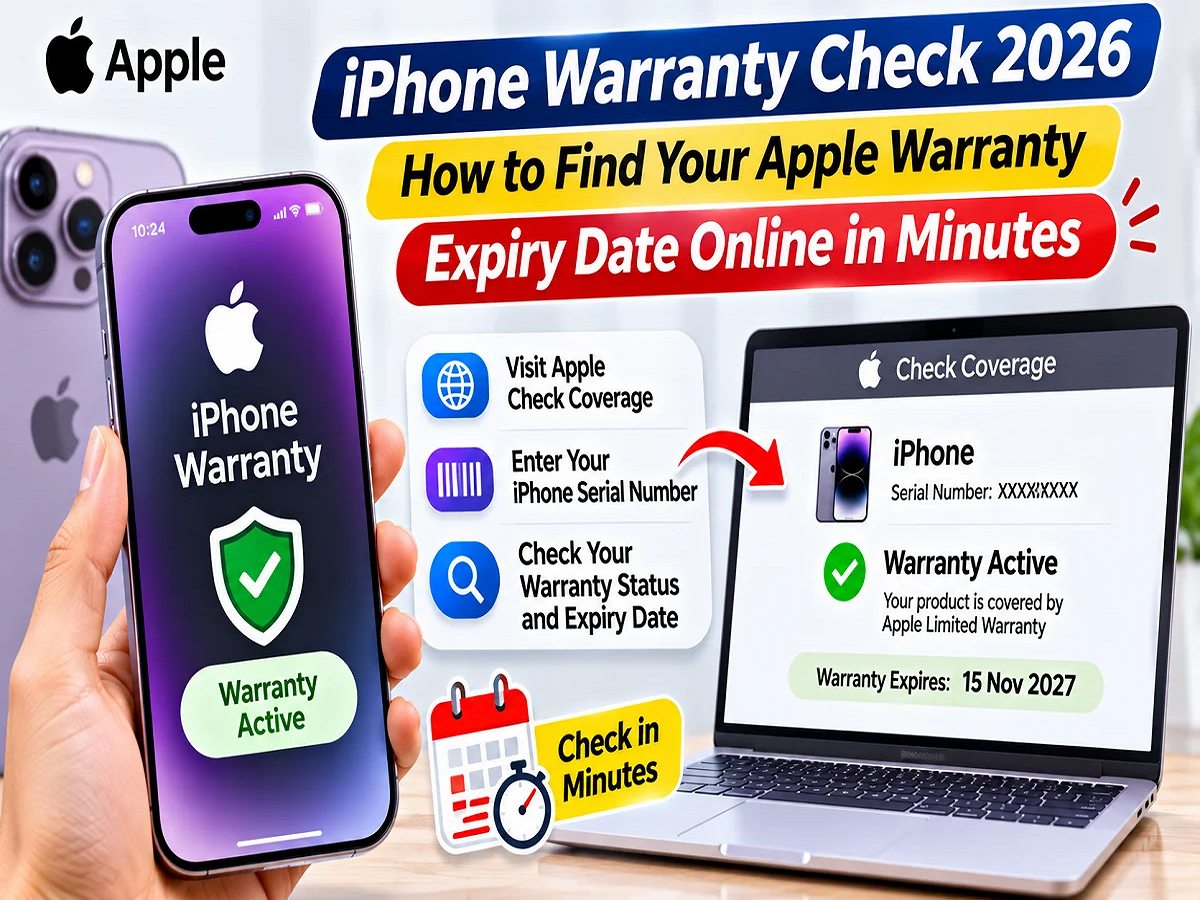
iPhone Warranty Check Online: If you use an Apple iPhone, you should know when your phone's warranty expires. Many times, people find out that their phone's warranty has expired after a technical problem occurs. Apple provides its users with several easy ways to check their iPhone's warranty and AppleCare coverage. You can check the warranty information through your phone's Settings, Apple's official website, or your Apple Account. There's no need to visit a service center for this.
Buying an iPhone these days costs a lot of money, so it's important to be aware of the phone's safety and repair features.
If you're having trouble with your iPhone's screen, camera, battery, or other hardware, it can be helpful to check the warranty status before getting it repaired.
Apart from this, even if you are planning to buy a used iPhone, you should definitely check the warranty information.
How long does the iPhone warranty last?
Apple typically provides a one-year limited warranty with new iPhones.
This warranty covers manufacturing defects and eligible hardware issues as per the terms and conditions specified by the company.
However, issues like screen cracking from dropping the phone or accidental water damage are not covered under the standard limited warranty.
Additional plans like AppleCare+ may also cover certain types of accidental damage.
So just because the warranty is active doesn't mean that all repairs will be free.
How to check warranty from iPhone Settings?
If you have your iPhone, one of the easiest ways to view warranty information is from its Settings.
For this, follow the steps given below.
Step 1: First, open the Settings app on your iPhone.
Step 2: Now tap on the General option.
Step 3: Then open the AppleCare & Warranty section.
Step 4: Select your iPhone in the list of devices that appears on the screen.
Step 5: Now check the available warranty and coverage information.
Information about the Apple Limited Warranty or active AppleCare plan associated with your device may appear here.
Apart from this, the warranty expiry date can also be seen.
Keep in mind that the information available on the screen may vary depending on your device and coverage conditions.
How to check iPhone Warranty from Apple's website?
If you don't have an iPhone or want to check the warranty on a second-hand device, you can use Apple's online service.
For this it is necessary to have the serial number of the phone.
Step 1: Open the internet browser on your mobile or computer.
Step 2: Visit Apple's official Check Coverage website.
Step 3: Now enter the serial number of the respective iPhone.
Step 4: If the website asks for verification, complete it.
Step 5: Then click on Submit or the relevant option available.
The website may now display warranty and service coverage information for that device.
This method is also useful for those who want to confirm the warranty on a used iPhone before buying it.
Where can I find the serial number of my iPhone?
To check the warranty on Apple's website, the Serial Number is required instead of the IMEI.
If you don't know your phone's serial number, you can easily find it.
For this, open Settings in iPhone.
Now go to the General section and tap on the about option.
The Serial Number will be visible here.
You can also copy this number by long pressing it.
If the phone is not available, the serial number can also be found on the original packaging.
In some cases, device details can also be viewed from the information icon on the iPhone's initial setup screen.
For safety, avoid sharing the serial number on public platforms or with strangers.
You can also check the warranty from your Apple account.
Apple also allows its users to view information related to the device and support coverage through their Apple Account.
Apple's My Support portal can be used for this .
First, open the website and sign in with your Apple Account.
Then select your iPhone in the list of available devices.
Now check the service and support coverage information of the respective device.
In some cases, the option to View Proof of Coverage may also be available.
Through this, documents related to coverage can be obtained.
Apple may also ask for additional identity verification in this process.
What is the difference between Apple Limited Warranty and AppleCare+?
Many iPhone users mistake the standard warranty and AppleCare+ for the same thing, but there is a difference between the two.
|
Apple Limited Warranty |
One year manufacturing defect and eligible hardware coverage as per the terms and conditions |
|
AppleCare+ |
Additional hardware protection and coverage for eligible accidental damage, with applicable service charges |
|
AppleCare+ with Theft and Loss |
Additional theft or loss protection in eligible plans, subject to terms and conditions and fees |
Features available with AppleCare+ may vary by country, device, and plan purchased.
Therefore, it is important to check the terms and conditions of any plan before purchasing it.
Does AppleCare+ cover broken screens and batteries?
Coverage for certain types of accidental damage may be available under AppleCare+.
For example, a phone may be eligible for repairs if it breaks the screen due to a drop or is damaged by liquid.
However, a fixed service charge may apply for such repairs.
AppleCare+ also has special conditions when it comes to batteries.
According to the source, eligible AppleCare+ coverage may offer battery replacement without additional service fees if the battery capacity falls below 80 percent of the original capacity.
But gradual loss of battery capacity due to normal use is not automatically covered by Apple's standard limited warranty.
What to do if the iPhone Warranty Expiry Date is wrong?
Many times, after purchasing a new iPhone, the purchase date is not updated correctly in Apple's records.
For this reason, the warranty expiration date may not match the actual purchase date.
If this happens to you, first keep the original phone bill or purchase receipt safe.
Then contact Apple Support.
Apple may ask for the original invoice to confirm the date of purchase.
After verification, the company can make necessary corrections in its records.
Therefore, it is important to keep the purchase receipt safe while purchasing a new iPhone.
Buying a second-hand iPhone? Check these things along with the warranty
If you're planning to buy a used iPhone, just looking at the warranty information isn't enough.
Before buying a phone, some important things related to its technical condition and safety should also be checked.
1. Check Activation Lock
Make sure the phone is not linked to the previous owner's Apple Account.
Ask the seller to erase the phone's data and remove it from your account.
If the previous owner's password is being asked for during setup, avoid buying the phone in such a situation.
2. View Parts and Service History
Open Settings on your iPhone, then General and the About section.
Parts and Service History information may appear on supported devices and iOS versions.
This can help determine if certain parts of the phone have been replaced before.
3. Check Battery Health
Open the Battery section in Settings.
After this, see the Battery Health information.
Details regarding the maximum battery capacity can be found here.
The menu names may differ slightly between different iPhone models and iOS versions.
4. Check the phone's hardware
Before buying a used iPhone, check its display, camera, speaker, microphone, buttons, and charging port.
Also check if the phone is charging normally.
5. Be sure to ask for the purchase bill
If the seller claims the phone is still under warranty, ask him for the original purchase bill.
Keep in mind that buying a second-hand iPhone doesn't reinstate its original one-year warranty.
Can I check iPhone warranty without bill?
Yes, available warranty information can be viewed using the Serial Number through Apple's online Check Coverage feature.
For this, it is not necessary to have a purchase bill every time.
However, if the warranty date is incorrect or proof of purchase is requested in a service claim, a bill may be required.
Therefore, it is better to keep the phone invoice safe.
Conclusion
Checking iPhone warranty is easy and does not require a visit to a service center.
Users can view coverage information by opening the AppleCare & Warranty section in Settings, entering the serial number on Apple's Check Coverage website, or from their Apple Account.
If you're experiencing technical issues with your phone or buying a second-hand iPhone, it can be useful to check the warranty status beforehand.
Additionally, it's important to understand the difference between a regular warranty and AppleCare+, as not all types of damage are covered under every plan.