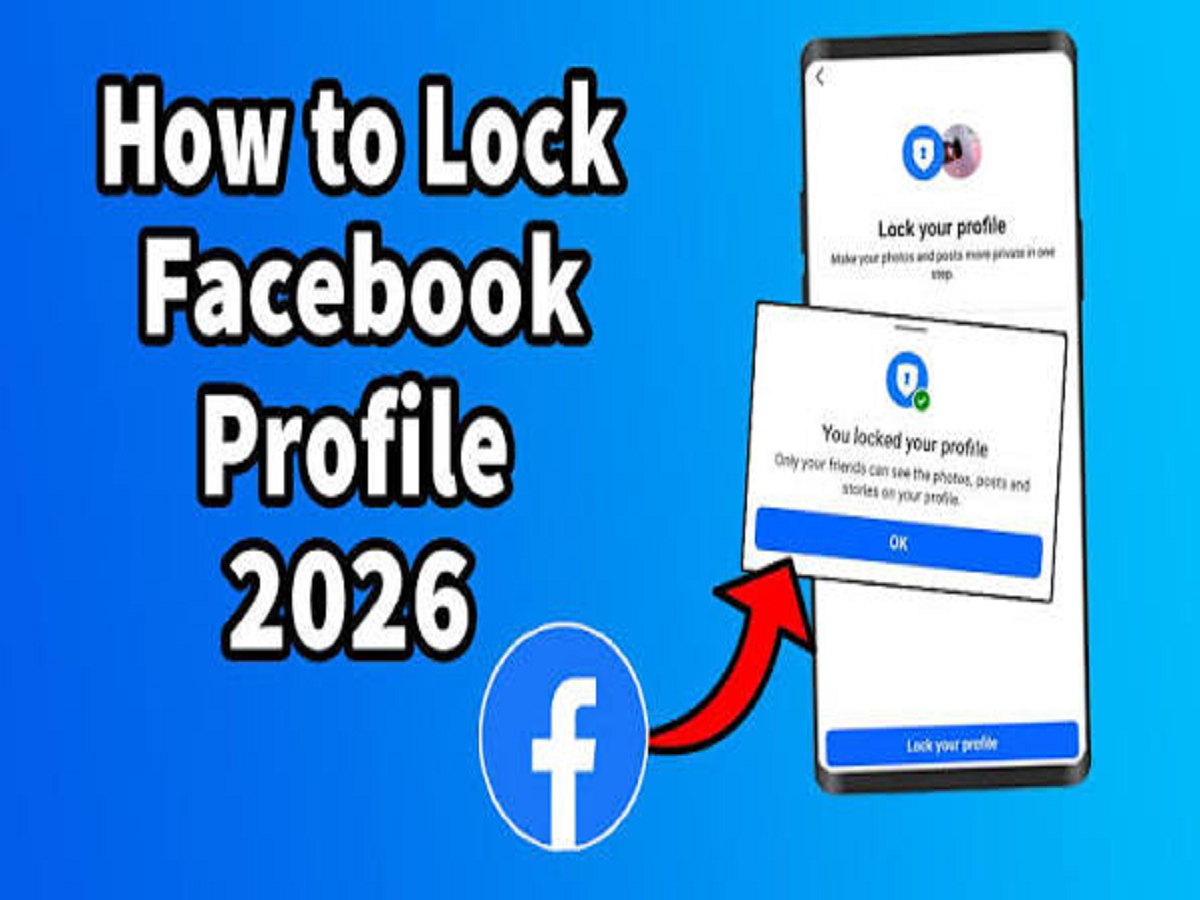
If you want to protect your personal information, photos, and posts on Facebook from strangers, the Profile Lock feature can be very useful. This feature limits access to many of your profile details only to your Facebook friends.
What is Facebook Profile Lock?
Facebook's Profile Lock feature helps increase the privacy of your profile. Locking your profile restricts access to many things on your profile from strangers. This gives you more control over who can see your photos, posts, and stories.
How to Lock Facebook Profile?
Follow these simple steps to lock your Facebook profile:
1. Open the Facebook app
First, open the Facebook app on your phone and log in to your account.
2. Go to your Profile
Now open your Facebook Profile by tapping on your Profile Photo or Name.
3. Tap on the three-dot option
After reaching Profile, tap on the three-dot (⋯) option.
4. Find the Lock Profile option.
You may now see the Lock Profile option. Tap on it.
5. Confirm the Profile Lock.
Facebook will then show you information about the Profile Lock. Confirm it by tapping Lock Your Profile or a similar option.
After this your Facebook profile will be locked.
What if the Lock Profile option is not visible?
The Profile Lock option isn't available on every Facebook account or in every area. If you don't see this feature, you can limit the visibility of your posts, stories, profile information, and friends list through Privacy Checkup and Facebook's Privacy Settings.
For this, go to Settings & Privacy > Privacy Checkup in Facebook and check the available options.
PC:Instagram