Facebook has long been one of the most influential social networking platforms, connecting people across countries through posts, photos, videos, comments, and instant messaging. While the platform helps users stay connected, constant notifications, privacy concerns, or the need for mental space may sometimes push people to step away from social media.
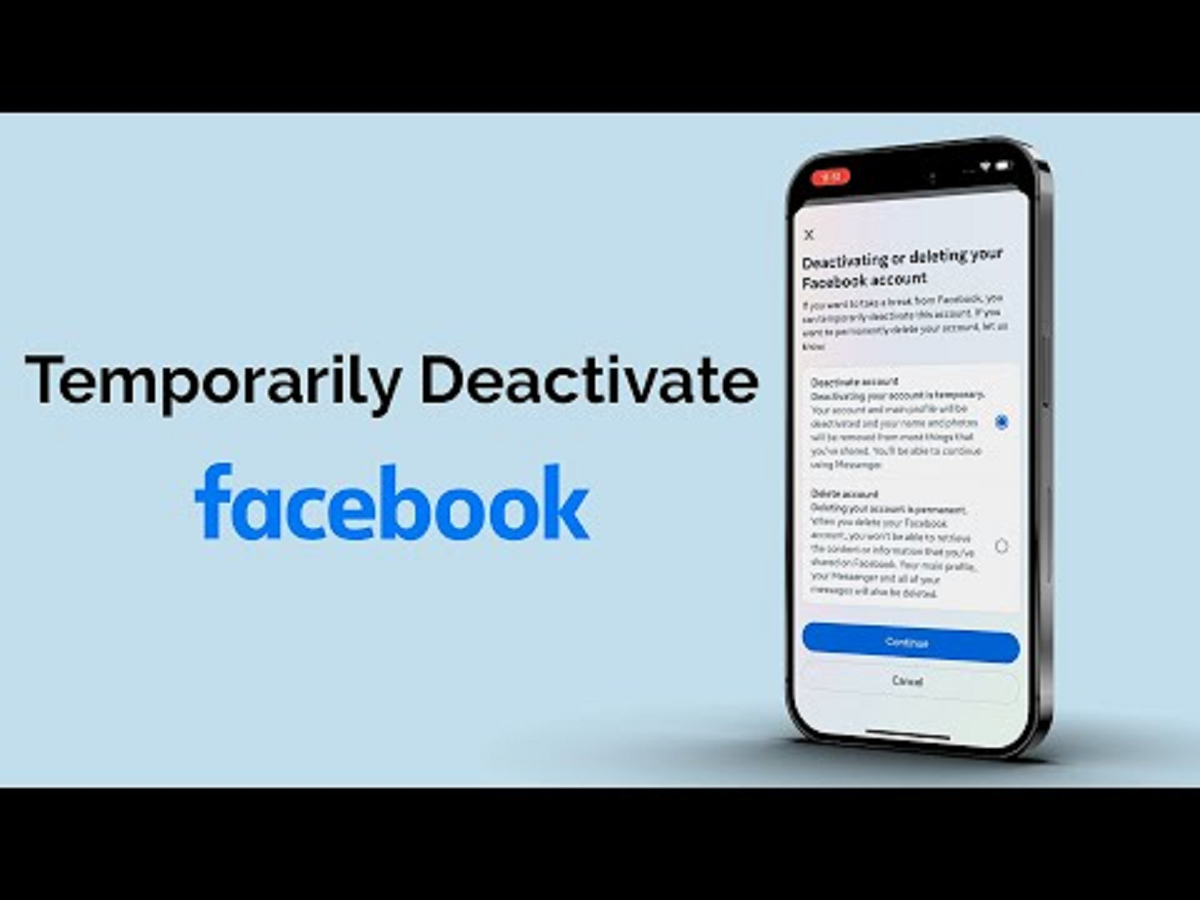
For those who don’t want to permanently delete their account, Facebook offers a temporary deactivation option. This feature allows users to disappear from the platform for a while and return whenever they feel ready—without losing their data.
What Does Facebook Account Deactivation Mean?
Deactivating your Facebook account is not the same as deleting it. When you deactivate your account:
-
Your profile becomes invisible to other users
-
People cannot search for you or view your timeline
-
Your photos, posts, and likes are hidden
-
Your data remains stored securely by Facebook
-
You can reactivate your account anytime
This option is ideal for users who want a temporary digital detox.
Step-by-Step Guide: How to Deactivate Your Facebook Account
You can deactivate your account using a web browser or the Facebook app on Android devices. Follow these steps carefully:
-
Log in to your Facebook account via browser or mobile app
-
Tap on the three horizontal lines (menu icon) at the top-right corner
-
Select Settings & Privacy, then tap on Settings
-
Under the Accounts section, tap Personal and Account Information
-
Choose Account Ownership and Control
-
Tap on Deactivation and Deletion
-
Select Deactivate Account and tap Continue to Account Deactivation
-
Enter your Facebook password for verification
-
Choose a reason for deactivation from the available options or provide your own explanation
-
Under the Reactivate Your Account option, select a duration for deactivation
-
Tap Deactivate My Account to complete the process
Once these steps are completed, your Facebook account will be deactivated immediately.
Automatic Reactivation: How It Works
Facebook allows users to:
-
Set a specific time period for deactivation
-
Automatically reactivate the account after the chosen duration
-
Reactivate instantly by logging back in manually
This flexibility ensures users stay in full control of their online presence.
What Happens After Deactivation?
After your account is deactivated:
-
Your timeline is hidden from public view
-
Other users cannot tag or mention you
-
Your name may still appear in friends’ lists
-
Messages you previously sent remain visible
-
Group administrators can still see your old comments and posts
This ensures conversations and group activity remain consistent.
What About Facebook Messenger?
Deactivating Facebook does not automatically disable Messenger.
If Messenger remains active:
-
You can continue chatting with friends
-
Your profile picture remains visible in chats
-
People can search for you and send messages
If you want a complete break, Messenger must be deactivated separately.
Why Do Users Deactivate Facebook Accounts?
Common reasons include:
-
Reducing screen time and digital fatigue
-
Privacy and data-related concerns
-
Focusing on studies or work
-
Mental health and well-being
-
Temporary social media detox
Deactivation offers a balanced solution without permanent loss.
Final Words
Facebook’s deactivation feature is designed for users who want to pause their social life without erasing their digital footprint. It provides privacy, flexibility, and peace of mind, allowing users to return whenever they choose.
If you’re feeling overwhelmed but not ready to permanently leave Facebook, temporarily deactivating your account is the smartest move.