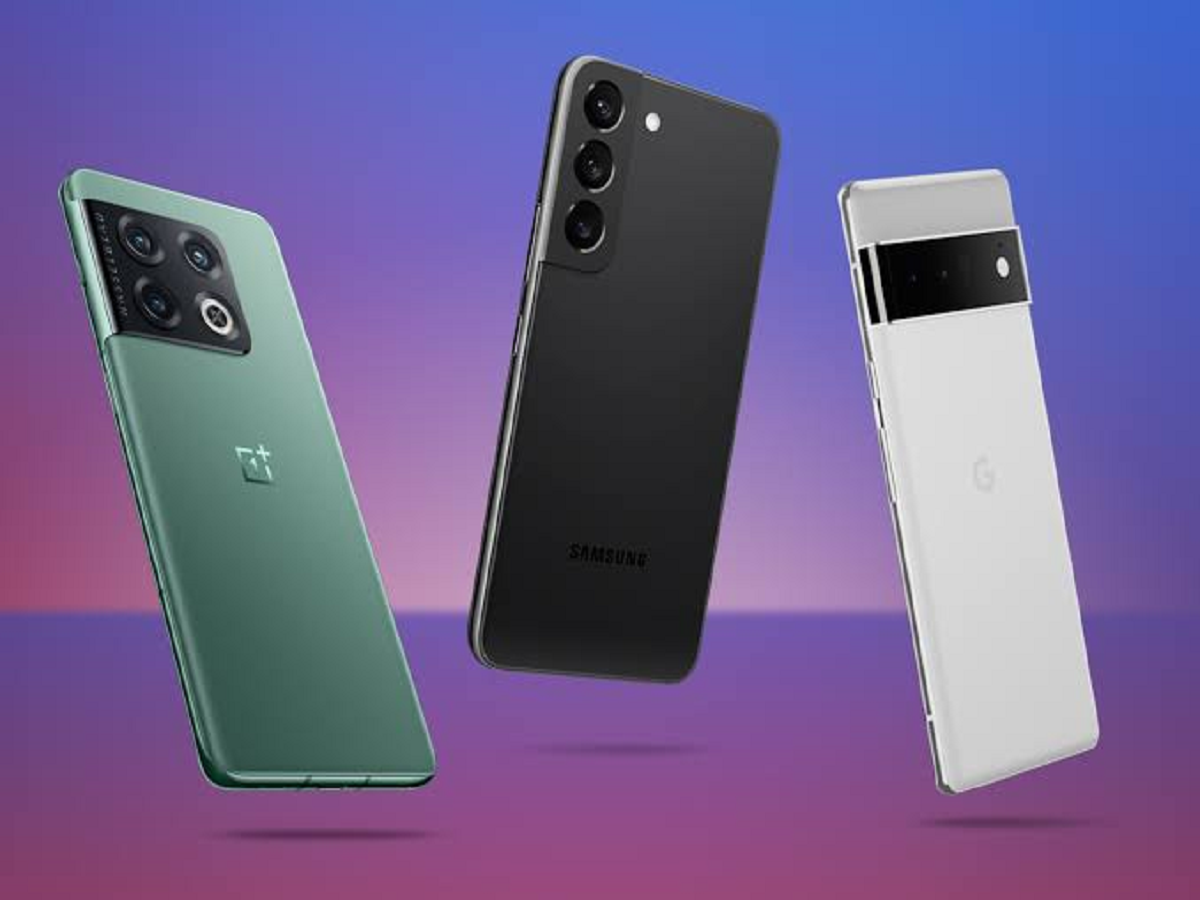
Most people use their smartphones for calls, WhatsApp, social media, videos and payments, but many useful features remain hidden inside the Settings menu. Android phones in 2026 offer numerous shortcuts, privacy controls and automation options that can save time without requiring any additional app.
Here are some practical tricks worth trying on your phone.
1. Search Settings Instead of Hunting Through Menus
Can't find a particular setting? Don't keep opening different menus.
Open Settings and use the search bar at the top. Simply type words such as "battery," "permissions," "notifications," "screen recording" or "privacy." Your phone can take you directly to the relevant option.
The exact menu names can vary between Samsung, OnePlus, Xiaomi, Motorola, Pixel and other Android phones, so Settings search can often be the quickest method.
2. Stop Unnecessary Apps From Sending Notifications
If your phone constantly vibrates because of shopping apps, games or social-media notifications, you don't need to uninstall them.
Go to Settings > Notifications and check which apps are sending the most alerts. You can turn off notifications for individual apps or specific notification categories.
This can make your phone considerably less distracting without affecting the apps themselves.
3. Check Which Apps Are Using Your Battery
If your battery suddenly starts draining faster than usual, don't immediately assume the battery is damaged.
Open the Battery section in Settings and look at battery usage by app. If an app you barely use is consuming an unusually large amount of power, consider restricting its background activity, updating it or uninstalling it if you don't need it.
4. Use App Shortcuts Without Opening the App
Many Android apps offer shortcuts directly from their icons.
Press and hold an app icon on the Home Screen. Depending on the app, you may see shortcuts to specific functions.
For example, a camera app may provide a shortcut directly to video or selfie mode, while a messaging app may let you quickly open a particular action.
This saves several taps every day.
5. Customize Quick Settings
You don't always have to open Settings to access commonly used functions.
Swipe down from the top of the screen to open Quick Settings. You can usually edit the available buttons and move frequently used options closer to the front.
You can add or rearrange shortcuts such as screen recording, hotspot, battery saver, QR scanning, Bluetooth and other functions, depending on your phone.
6. Use Automation to Make Your Phone Smarter
Modern smartphones can automate repetitive tasks. Depending on the brand, built-in automation tools can perform actions based on time, location, battery level or other conditions.
For example, you could create an automation to enable battery-saving settings when the battery becomes low or change certain settings when you reach work.
Samsung Galaxy devices, for example, offer automation and customization options through One UI and related tools.