Losing a smartphone today can mean much more than losing an expensive device. Phones often contain banking apps, UPI accounts, personal photographs, emails, passwords and important documents. If someone manages to unlock a stolen phone, the risk can extend to both personal data and financial accounts.
Android includes several theft-protection features designed to automatically lock a phone or make sensitive changes harder after a device is stolen. Some features require newer Android versions and compatible devices, so availability can vary by phone model.
Here are five settings Android users should check before they actually need them.
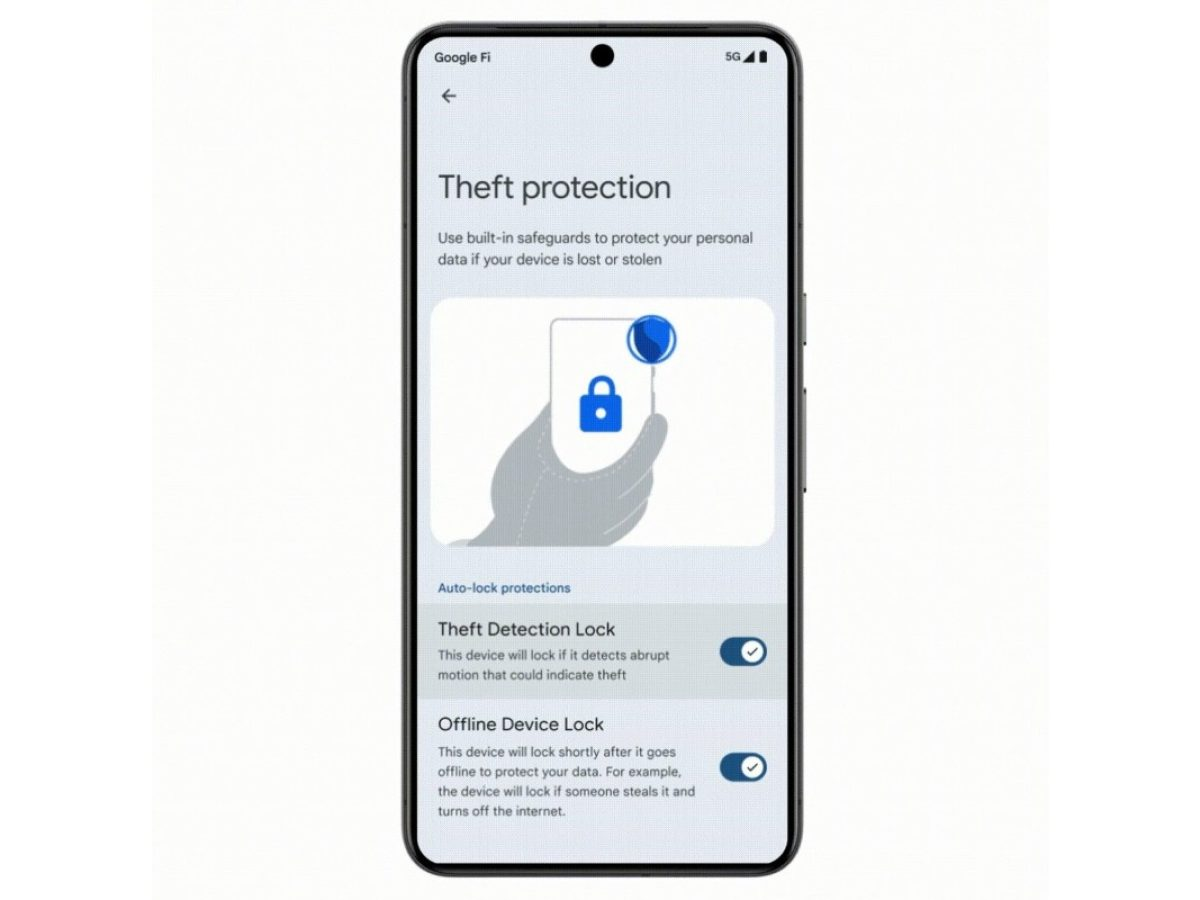
1. Turn On Theft Detection Lock
Theft Detection Lock is one of Android's most useful anti-theft features.
It uses on-device signals including motion sensors, Wi-Fi and Bluetooth to detect movements that may indicate someone has suddenly grabbed your unlocked phone and moved away with it.
If Android detects a possible theft attempt, the phone can automatically lock its screen, helping prevent immediate access to your apps and personal information.
On supported devices, look under:
Settings > Google > All services > Theft protection > Theft Detection Lock
Menu names may vary slightly depending on the manufacturer.
2. Enable Offline Device Lock
A thief may try to disconnect a stolen smartphone from the internet to prevent its owner from locating it.
Android's Offline Device Lock is designed for this situation. If an unlocked device goes offline and remains disconnected for a period, Android can automatically lock its screen.
This option can generally be found in the same Theft Protection section.
Keeping it enabled provides another layer of protection if someone tries to defeat tracking by switching off connectivity.
3. Set Up Remote Lock Before You Lose the Phone
Remote Lock can be extremely useful when you suddenly realise your smartphone is missing.
On supported devices, users can remotely request a screen lock using their verified phone number. The feature needs to be configured beforehand, along with requirements such as an active SIM, screen lock and Find Hub.
To enable it, check:
Settings > Google > All services > Theft protection > Remote Lock
If the phone is offline when the remote-lock request is made, Google says the screen can lock when the device reconnects to the internet.
Google’s official Android theft-protection guide
4. Turn On Identity Check
Getting hold of your unlocked smartphone shouldn't automatically give someone the ability to change its most important security settings.
On supported devices, Identity Check requires biometric authentication for certain sensitive actions when you're outside designated trusted places.
These can include changing the screen lock, adding or removing fingerprints, accessing saved passwords and passkeys, turning off Find Hub, performing a factory reset and changing some Google Account recovery settings.
This can make it considerably harder for someone who knows or observes your PIN to take control of the phone and associated accounts.
5. Make Sure Find Hub Is Ready
Don't wait until your smartphone disappears to check whether its location service is configured.
Google's Find Hub can help users locate a missing Android device, mark it as lost, secure it or erase its data remotely in supported circumstances. Google says Find Hub is automatically turned on when a Google Account is added to an Android device, but users should still check their settings before an emergency.
Also keep your device backup enabled. If recovering the phone becomes impossible and you need to erase it remotely, having a recent backup can prevent important data from disappearing permanently.
Bonus: Hide Banking and Sensitive Apps in Private Space
Users with supported Android 15 or newer devices can also consider Private Space.
It creates a separate area where sensitive apps can be installed and protected with an additional lock. Android also provides an option to hide Private Space itself when it is locked.
This can be particularly useful for apps or information you don't want immediately visible to someone who gains temporary access to your phone.
Use a Strong PIN Too
Biometric security doesn't make your screen-lock PIN unimportant.
Google recommends using a strong PIN with six or more digits, or a strong password. A simple PIN such as 1234, 0000 or your birth year can make other security measures less effective if someone manages to guess it.
Check These Settings Today, Not After Your Phone Goes Missing
Anti-theft tools work best when they're configured before an incident occurs.
Spend a few minutes checking Theft Detection Lock, Offline Device Lock, Remote Lock, Identity Check and Find Hub. Also make sure your recovery phone number is current and your important data is backed up.
Not every Android phone supports every feature, but enabling the protections available on your device can make a stolen smartphone much harder to exploit—and give you more options to protect your information if it disappears.