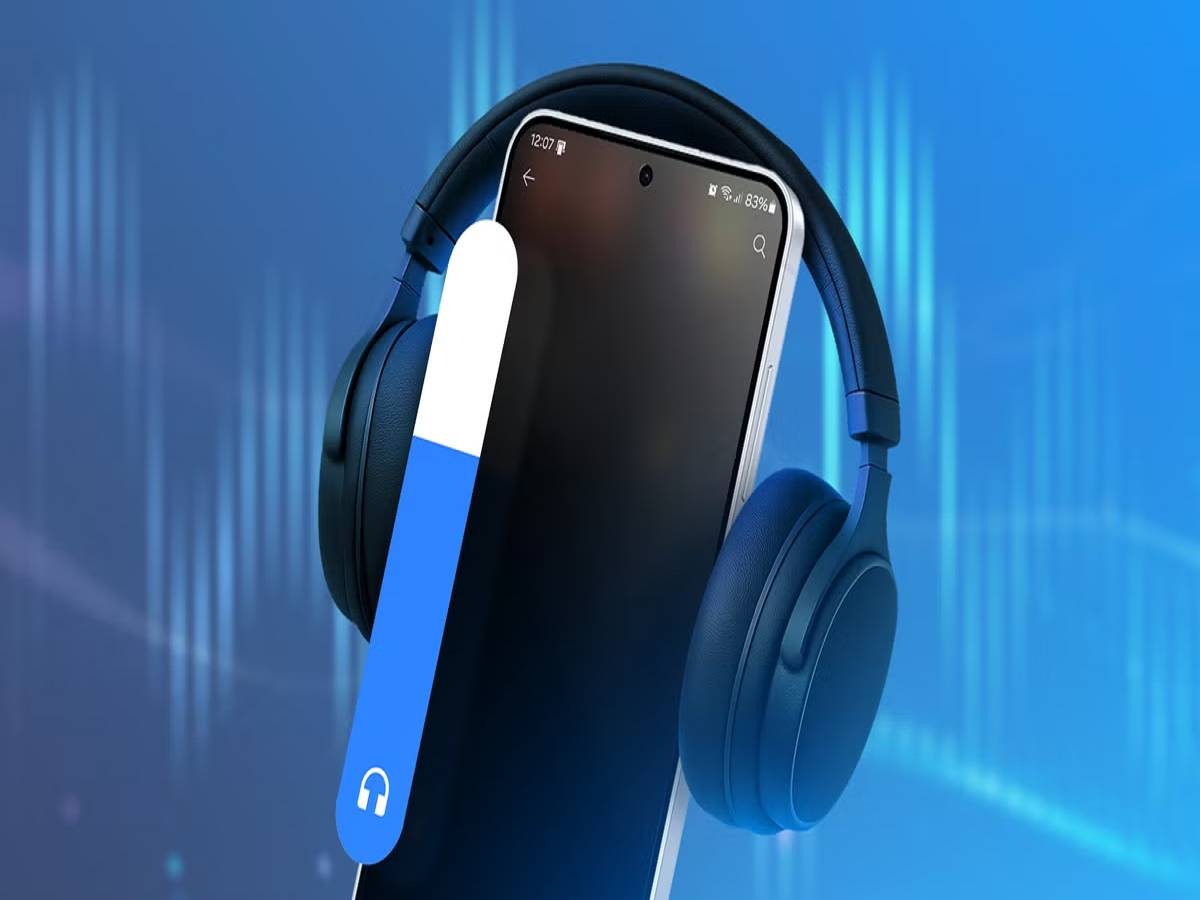
Wireless earphones and headphones have become a daily essential for many smartphone users. But sometimes Bluetooth audio can sound noticeably worse than expected, with low volume, weak bass, delays or occasional crackling.
Before replacing your earphones, try a few simple settings and troubleshooting steps that can improve the listening experience.
Keep Your Earphones and Phone Close
Bluetooth works best when there is a clear connection between your phone and the audio device.
If your phone is in another room, buried inside a bag or separated by several walls, the connection can become less stable. Keep the phone reasonably close to your earphones, particularly when listening to high-quality audio.
Check Your Bluetooth Codec
Some smartphones and Bluetooth headphones support different audio codecs.
Depending on your device, you may see options such as AAC, aptX, LDAC or other codecs. A compatible higher-quality codec can potentially improve sound quality, but both the phone and headphones need to support it.
On supported Android phones, Bluetooth developer settings may provide additional codec options.
Turn Off Unnecessary Bluetooth Connections
If your phone is simultaneously connected to several Bluetooth devices, disconnect devices you're not currently using.
Smartwatches, speakers, cars and other accessories can create unnecessary connection activity. While modern Bluetooth is designed to handle multiple connections, removing devices you don't need can simplify troubleshooting when audio problems occur.
Check Your Music App's Quality Settings
Your Bluetooth headphones can't produce audio quality that isn't present in the source.
Music and video streaming services often offer different audio-quality settings. If your app is set to a low-quality streaming mode,