TECH
Create your own short film without a camera with Google Flow, learn the complete method of creating videos with AI
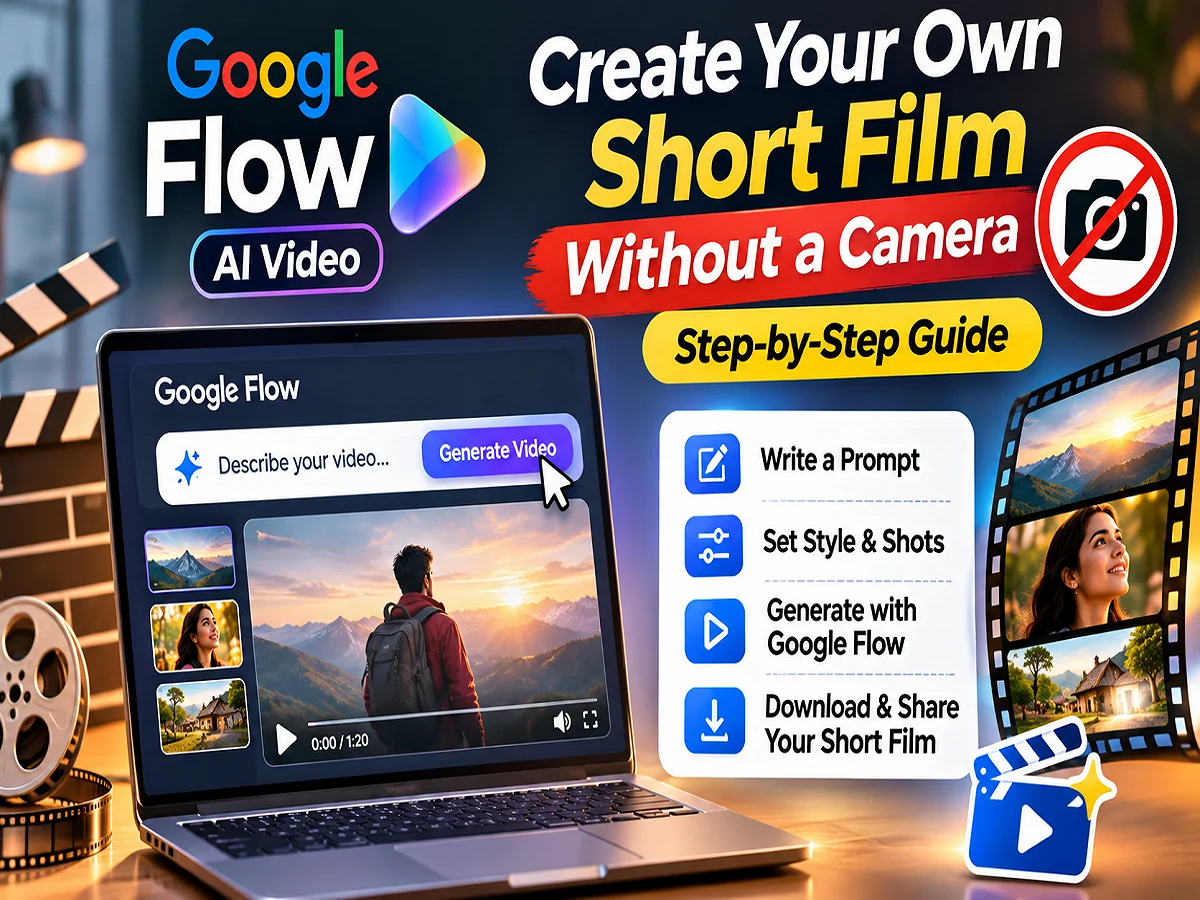
Google Flow AI Video: If you want to create a short film based on your story but don't have an expensive camera, studio, or professional video editing software, Google Flow can be useful. This AI-based video creation tool from Google can create video scenes using written instructions and reference images. It allows users to create different scenes and combine them into a story. However, writing the right prompt, planning the story, and editing the video are essential for best results.
Artificial intelligence has significantly changed the way video is created. Previously, creating a short film required numerous arrangements related to cameras, actors, locations, and editing. Now, with the help of AI tools, it's becoming easier to translate imagination into video.
Google Flow is one such tool, specifically designed for AI-powered filmmaking. Users can create individual shots based on their story and then combine them into a short film.
What is Google Flow and how does it work?
Google Flow is an AI-based filmmaking tool that can create video clips based on text prompts and images.
For example, if you want to create a scene of a rainy road, a village nestled in the mountains, or a spaceship flying in space, you can write its description and get the video created by AI.
The output can be improved by providing information such as camera angle, lighting, environment, character movements and scene style in this tool.
However, Google Flow is more useful for developing a story by creating short video scenes rather than creating a full, long film at once.
Step-by-step guide to creating a short film with Google Flow
If you are using Google Flow for the first time, you can initially choose a short story of 30 seconds to one minute.
This will help you understand the process of creating and combining different scenes.
Step 1: Open the Google Flow website
First of all go to the official website of Google Flow .
After this sign in with your Google account.
Now select the option to create a new project and enter the name of your movie.
Before you start creating videos, be sure to check the available AI models, video generation credits, and subscription terms.
Some features of Google Flow may be available under paid plans or with a set credit limit.
Step 2: Create the story and scenes for the film
Before getting a video created by AI, decide what you want to show in your film.
Let's say you want to create a story about a man who finds a mysterious letter on the street during a rainstorm.
This story can be divided into four short scenes.
The first scene depicts a rainy street. The second scene depicts a man receiving a letter. The third scene reveals the man opening the letter, and the fourth scene reveals the story's mystery.
Planning ahead like this makes it easier to add each video clip in the correct order.
Step 3: Type the correct prompt to create an AI video
The video quality in Google Flow depends largely on your instructions.
It would be better to elaborate on the scene rather than simply writing 'man walking in the rain'.
For example, you could write a prompt like this:
SAMPLE AI VIDEO PROMPT
A young man wearing a blue jacket walks slowly through a quiet city street at night. Heavy rain falls under warm yellow streetlights. The camera follows him from behind, cinematic lighting, realistic atmosphere, dramatic mood.
Copy Prompt
Such prompts include information such as characters, clothing, locations, camera movement, and lighting.
You can also choose the aspect ratio and other generation settings from the available options before creating the video.
If the first video doesn't turn out the way you expected, change the prompt and try again.
Step 4: Keep the Characters Consistent with Reference Images
A common problem when creating AI videos is that the characters' faces, clothes, or surroundings may change in different scenes.
To mitigate this problem, a feature like Ingredients available in Google Flow can be used.
Through this, additional information about the scene can be given to the AI by uploading a reference photo of the character, object or location.
For example, if the main character in your film wears a blue jacket, you can use a reference photo of him in different scenes.
However, not all AI models will necessarily have the Ingredients feature, and even using a reference image does not guarantee perfect similarity.
Step 5: Create smooth transitions between scenes with the Frames feature
The Frames feature available in Google Flow can help control the starting and ending scene of the video.
Suppose a door closes in the first scene and the same door opens in the next scene.
In such a situation, using images for the starting and ending frames can help explain to the AI how the scene should proceed.
This can help improve visual continuity between different video clips.
Step 6: Add a video clip from SceneBuilder
Once you have created all the necessary video scenes for your story, it's time to arrange them in a sequence.
Google Flow's SceneBuilder can be useful for this.
In this, different clips can be placed according to the story.
Trim unnecessary parts of the video as needed and preview the entire sequence.
If a scene seems too fast or slow, adjust it using the available editing options.
Step 7: Edit the video and work on the audio
Simply creating visuals isn't enough to make a short film better.
'font-size:12.0pt;line-height:115%;"Times New Roman","serif"'>The editing features available in Google Flow and the supported Agent Mode offer options to modify some views or create new variations.
You can also specify in the prompt what kind of sound or atmosphere a scene requires.
However, complex audio editing, music, and subtitles may require separate video editing software.
Step 8: Download and share the short film
Once all the scenes of your film are ready, watch the entire video once from start to end.
Check if the story is progressing in the correct order.
After this, save the finished video using the available export or download options.
You can share your short film on YouTube or other social media platforms.
Keep in mind that while uploading videos, it is important to follow the AI content, copyright and other rules of the respective platform.
What features are available in Google Flow?
|
Text-to-Video |
Create a video from a written prompt |
|
Ingredients |
Trying to create similarities between characters and objects using reference photographs |
|
Frames |
Controlling the scene through the start and end frames |
|
SceneBuilder |
Adding individual clips to a sequence |
|
Editing Tools |
Edit the video from the available options |
|
AI Video Models |
Generating videos from supported models |
Availability of these features may vary depending on the model, plan and region selected.
Can I use Google Flow for free?
The availability and usage limits of Google Flow depend on the user's plan and region.
Subscription options like Google AI Plus, Pro, and Ultra offer different features and AI credits.
Credits may be used up during video generation, so be sure to check your available balance before creating multiple variations of the same scene.
If the credits are exhausted, the user may have to wait for the next credit availability or choose a suitable plan.
It is better to check the current pricing and credit limit information from the official website of Google Flow.
Keep these things in mind to create better videos with Google Flow
If this is your first time making a film with AI, avoid creating a very complex story at first.
It may be easier to start with a story with fewer characters and limited locations.
Keep the character's clothing, facial features, and location details clear in each scene.
Use reference photos where available.
If the AI is showing incorrect movements in a scene, improve the prompt for that scene instead of changing the entire video.
Also check for unusual changes in the shape of hands, faces, 'font-size:12.0pt;line-height:115%;"Times New Roman","serif"'>Also, be aware of the necessary permissions and applicable regulations when using the image or voice of a real person.
Can a full movie be made using Google Flow?
Google Flow lets you create multiple short video scenes and connect them into a story.
However, challenges such as character synchronicity, scene transitions, audio, and editing can increase when making a longer film.
So making a short film can be a good practice for beginner users.
After you've created a 30-second or one-minute video, you can gradually work on more complex stories.
Conclusion
Google Flow can be a useful AI tool for those who want to present their stories as videos without traditional filmmaking tools.
It allows you to create different video scenes using text prompts, reference images, and available editing features.
However, creating a good short film requires a story plan, a clear prompt, and careful testing of the final video. AI video generation still has some limitations, so not every scene will be perfect on the first try.
PC: Rajasthan Khabre