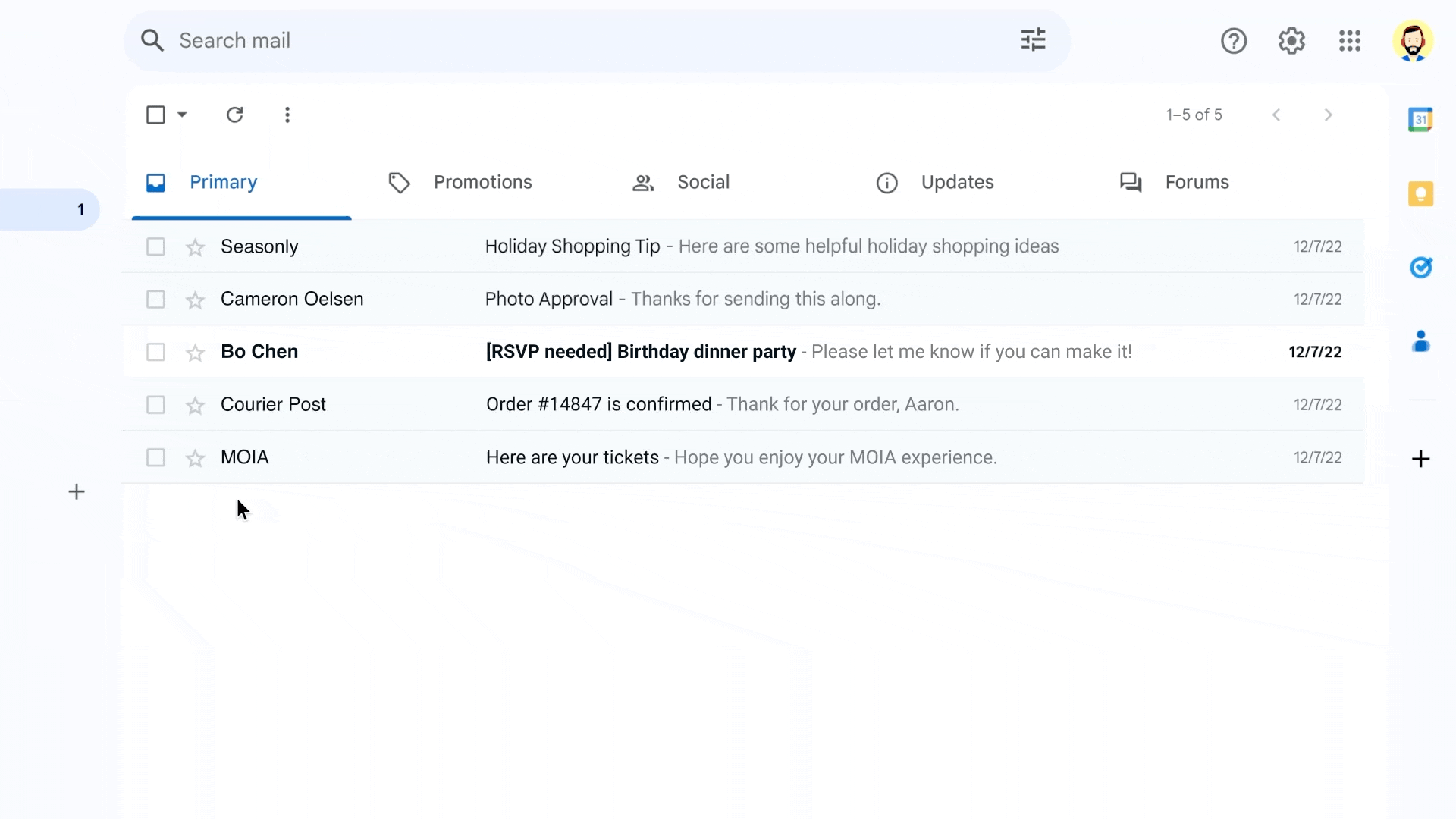
Gmail’s Built-in Task Feature Can Help You Manage Emails More Efficiently
Managing a crowded inbox can be challenging, especially when important emails require follow-ups, reminders, or further action. Fortunately, Gmail offers a useful feature that allows users to convert emails directly into tasks. This integration between Gmail and Google Tasks helps users organize their workflow and ensure that important messages are not forgotten.
Google has designed its ecosystem so that services such as Gmail, Tasks, Calendar, and Drive work seamlessly together. This tight integration enables users to move information between apps quickly and keep track of their daily responsibilities more effectively.
One of the most helpful productivity tools within Gmail is the option to add emails to your Tasks to-do list. With this feature, users can transform an email into a task that appears in the Google Tasks panel. When you click the task later, Gmail automatically opens the original email, making it easy to recall the context of the task.
This is particularly useful for professionals who receive emails that require follow-ups, project updates, or deadlines. Instead of leaving the email unread or marking it with a star, turning it into a task ensures that it appears in your organized to-do list.
Why Adding Emails to Google Tasks Is Useful
Adding emails to Tasks helps streamline your workflow in several ways:
-
Better organization: Important emails become actionable tasks rather than getting lost in the inbox.
-
Easy access: Clicking the task instantly opens the original email conversation.
-
Deadline management: Users can assign dates and times to tasks so they appear in their schedule.
-
Calendar integration: Tasks with due dates can show up in Google Calendar, making it easier to track upcoming responsibilities.
This functionality is especially beneficial for professionals, students, freelancers, and business owners who rely on email communication for work coordination.
Step-by-Step Guide: How to Add Emails to Your Gmail Tasks List
If you want to start organizing your emails more efficiently, follow these simple steps to add a message to your Tasks to-do list:
-
Open Gmail and go to your inbox.
-
Select the email that you want to convert into a task.
-
Click the “Add to Tasks” icon located at the top of the Gmail interface.
-
Enter task details, such as a title, description, or due date.
-
Save the task, and it will appear in your Google Tasks list.
Once the task is created, you can access it anytime through the Tasks panel in Gmail. Clicking the task will automatically redirect you to the original email, allowing you to review its content before taking action.
Important Note for Mobile Users
If you are using Gmail on a smartphone, make sure that the Google Tasks app is installed on your device. This allows tasks created from Gmail to sync properly and appear across devices.
With the Tasks app installed, you can manage your reminders and view linked emails directly from your phone.
Alternative Method for Desktop Users
There is another convenient way to add emails to your task list if you are using Gmail on a web browser.
Here’s how it works:
-
Open Gmail on your computer.
-
Locate the Google Tasks panel on the right-hand side of the screen.
-
Drag and drop the email from your inbox directly into the Tasks panel.
-
Add additional information such as due date or notes.
-
Save the task.
You can repeat this process to add multiple emails as tasks. By assigning due dates, these tasks can also appear in your Google Calendar, helping you stay on top of deadlines and reminders.
A Simple Way to Boost Productivity
Gmail’s ability to convert emails into tasks is a small but powerful feature that can significantly improve productivity. Instead of letting important messages pile up in your inbox, users can transform them into structured to-do items that are easier to track and manage.
By combining Gmail with Google Tasks and Calendar, users can create a simple yet effective system for handling work, reminders, and follow-ups — all within the Google Workspace ecosystem.
For anyone looking to stay organized and maintain a clutter-free inbox, using Gmail’s task integration can be a practical solution for managing daily responsibilities efficiently.