TECH
Google Maps Has a Hidden Trick That Can Save You When GPS Goes Wrong: Try These 5 Location Tips
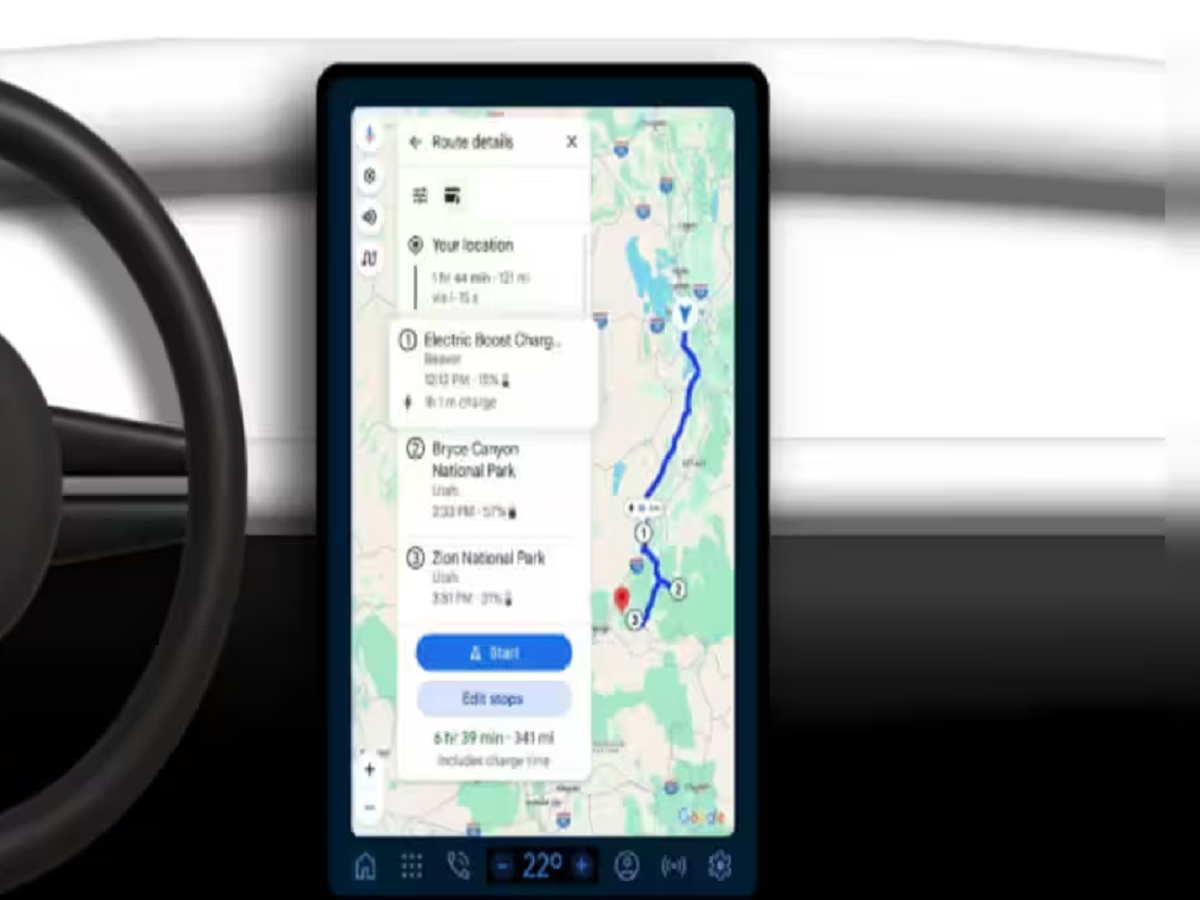
Google Maps has become an essential app for finding routes, checking traffic and sharing your location. But many users don't realise that a few simple settings can make navigation more reliable, especially when GPS accuracy suddenly drops.
Here are five useful Google Maps tips and tricks worth trying.
1. Improve Your Location Accuracy
If Google Maps keeps showing your location a few metres away from where you actually are, check your phone's location settings.
On Android, look for:
Settings → Location → Location Services → Google Location Accuracy
Keeping this enabled allows the phone to use GPS along with Wi-Fi, mobile networks and other signals to estimate your position more accurately.
2. Calibrate Google Maps When the Blue Dot Is Wrong
If the blue location dot is pointing in the wrong direction, calibration can help.
Open Google Maps and move your phone in a figure-eight motion a few times. This can help the phone's sensors determine which direction you're facing.
You may also see an accuracy indicator around the blue dot. A larger circle generally means Maps is less certain about your exact location.
3. Download Maps Before Travelling
Going somewhere with unreliable mobile internet?
Download the area in Google Maps before leaving.
Search for the destination, open its information card and look for the option to download an offline map.
This can be extremely useful on highways, in remote areas or when travelling internationally.
Remember that offline maps have limitations: live traffic information and some real-time features require an internet connection.
4. Share Your Live Location Only for the Required Time
Google Maps allows you to share your real-time location with another person.
Instead of leaving location sharing active indefinitely, choose a specific duration whenever possible.
This is useful when:
- Meeting friends
- Travelling alone
- Sharing your location with family
- Waiting for someone to pick you up
- Tracking progress during a journey
Once the purpose is over, stop sharing your location.
5. Check the Location Accuracy Before Following the Route
Don't blindly follow the blue arrow if your phone has just come out of a building, underground parking area or another location where GPS signals may be weak.
Tall buildings and other obstructions can affect GPS reception, causing the displayed position to temporarily jump or appear slightly away from your actual location.
Wait a few seconds in an open area and allow Maps to establish a better location before making an important turn.
Bonus Tip: Avoid Looking at Your Phone While Driving
Even if Google Maps is providing an accurate route, repeatedly checking the screen while driving can be dangerous.
Set your destination before starting the journey, use voice navigation and rely on hands-free directions whenever possible.
If you need to change the destination or route, pull over safely first.
The Bottom Line
Google Maps can be highly useful, but GPS is not perfectly accurate at every moment. Your phone combines GPS with other signals to estimate your location, and accuracy can change depending on your surroundings.
By improving location accuracy, calibrating your phone, downloading offline maps and using location sharing carefully, you can make Google Maps much more useful in everyday travel.