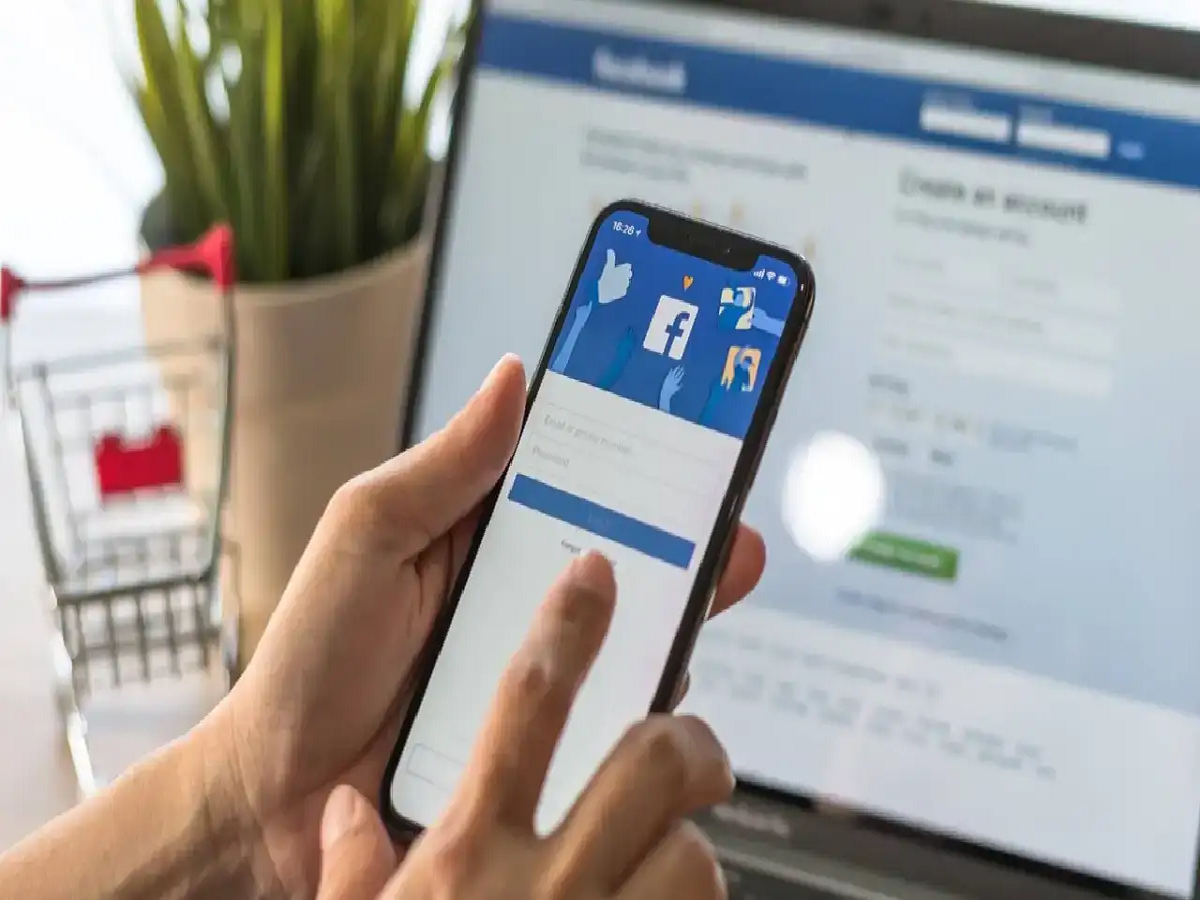
If you think someone else is logging into your Facebook account, you can easily find out which devices your account is logged in on. Facebook's "Where you're logged in" feature lets you view login information and quickly log out unknown devices.
How to check where your Facebook logins are:
First, open the Facebook app on your phone and log in to your account. Then, tap the Menu (☰) button at the top or bottom. Now, go to Settings & Privacy and open Settings.
Then, tap Accounts Center. You'll see the Password and security option here. After tapping it, go to the "Where you're logged in" section.
Now, the screen will display information about all the devices logged into your Facebook account. This may include mobile, computer, or other devices, along with the location and time of login. This can help you determine if your account is being used on an unknown device.
What to do if you see an unknown device?
If you see a mobile or computer you don't recognize in the login list, you can select that session and log out. If multiple unknown devices appear, you can log out from other sessions as well using the available options.
It's best to change your Facebook account password immediately. Also, enable two-factor authentication (2FA). This may require an additional security code when logging in from a new device.
Keep in mind that the displayed login location isn't always accurate. So, instead of panicking when you see an unfamiliar location, be sure to check the device, the time, and your recent login activity.
PC: Amar Ujala