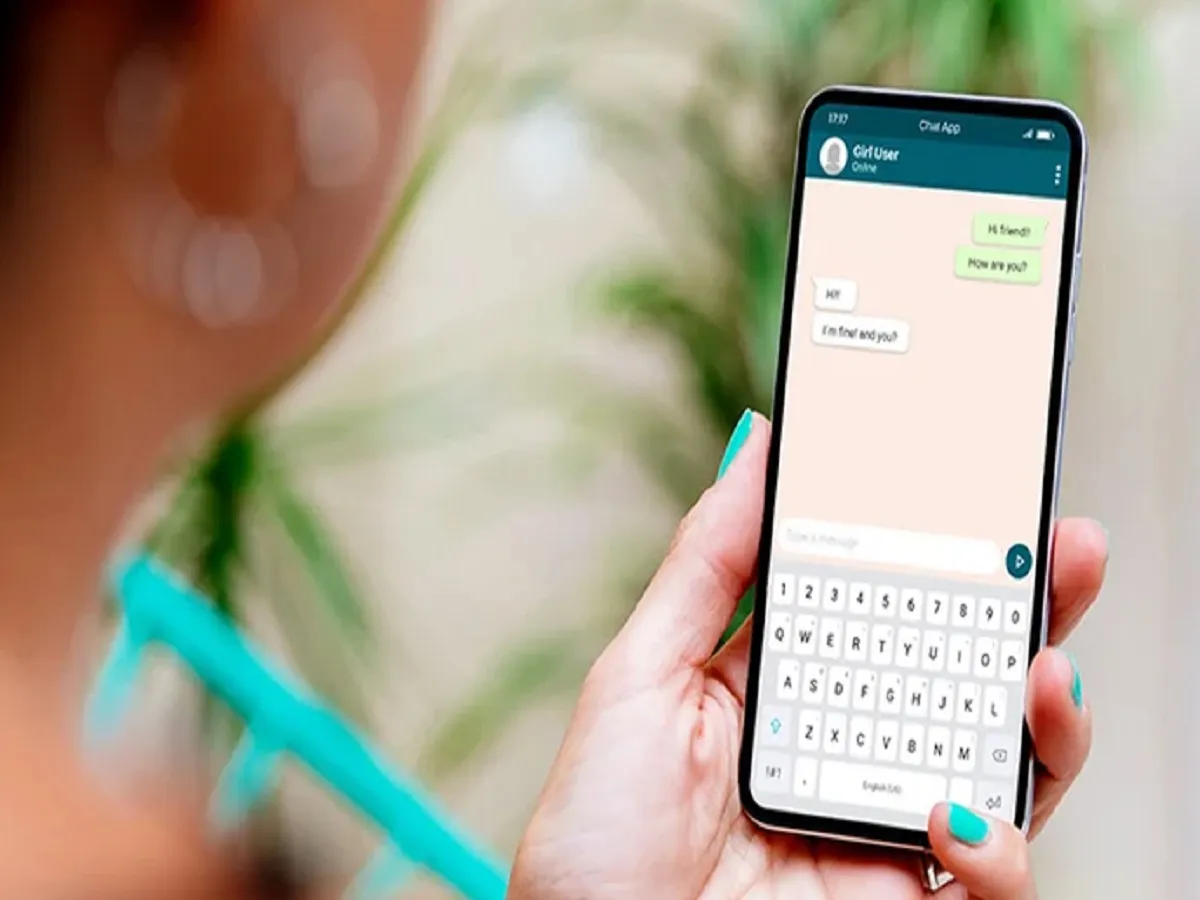
WhatsApp is widely used for personal and professional communication, which makes privacy and data security extremely important. To address this, WhatsApp offers several built-in privacy features such as end-to-end encryption, two-step verification, disappearing messages, and app lock. Among these, the WhatsApp lock feature is one of the most useful tools for preventing unauthorized access to your chats.
Once enabled, this feature ensures that no one can open your WhatsApp app without biometric authentication like a fingerprint or Face ID. Even if someone gets hold of your phone, your messages remain protected. Here is a detailed guide explaining how to enable WhatsApp lock on both Android and iOS smartphones.
What Is WhatsApp App Lock and Why Is It Important?
The WhatsApp app lock feature adds an extra layer of security to your account. After enabling it, you will be required to authenticate using your phone’s fingerprint sensor, Face ID, or device PIN before accessing the app. This prevents others from reading your chats, viewing media files, or accessing personal conversations without permission.
This feature is especially helpful if:
-
You share your phone with family or friends
-
Your phone is often left unattended
-
You want extra privacy beyond the phone’s lock screen
-
You handle sensitive personal or work-related conversations
It’s important to note that even when WhatsApp is locked, incoming calls can still be answered, ensuring that communication is not interrupted.
How to Enable WhatsApp Lock on iPhone (Face ID or Touch ID)
Apple iPhone users can secure WhatsApp using Face ID or Touch ID, depending on their device model. Follow these steps to enable the screen lock feature:
Step-by-Step Guide for iPhone
-
Open the WhatsApp app on your iPhone.
-
Tap on Settings, located at the bottom-right corner of the screen.
-
Select Account from the menu.
-
Tap on Privacy.
-
Scroll down and choose Screen Lock.
-
Turn on the toggle for Require Face ID or Require Touch ID.
-
Once enabled, WhatsApp will ask for Face ID, Touch ID, or your device PIN every time you open the app.
You can also choose how quickly the lock activates, such as immediately, after one minute, or after a longer duration.
How to Enable WhatsApp Lock on Android Smartphone
Android users can protect WhatsApp using the built-in fingerprint lock feature. The steps are simple and work on most modern Android devices.
Step-by-Step Guide for Android
-
Open WhatsApp on your Android smartphone.
-
Tap on the three-dot menu in the top-right corner.
-
Select Settings from the dropdown menu.
-
Tap on Account.
-
Go to Privacy.
-
Scroll down and tap on Fingerprint lock.
-
Enable the toggle next to Unlock with fingerprint.
-
Confirm your fingerprint to activate the feature.
Similar to iOS, Android users can also choose when the app should automatically lock—immediately or after a set time.
Key Things to Know About WhatsApp App Lock
-
The app lock works independently of your phone’s screen lock.
-
Notifications may still show message previews unless disabled separately.
-
Biometric data is stored securely on your device, not by WhatsApp.
-
You can disable or change lock settings anytime from the Privacy menu.
Other WhatsApp Privacy Features You Should Use
Apart from app lock, WhatsApp offers several other privacy tools that users should enable for maximum protection:
-
Two-Step Verification for account security
-
Disappearing Messages for sensitive chats
-
Last Seen and Online Status controls
-
Profile photo and About visibility settings
Using these features together can significantly improve your overall privacy on the platform.
Final Thoughts
The WhatsApp app lock feature is a simple yet powerful way to safeguard your personal conversations. Whether you use an Android phone or an iPhone, enabling biometric authentication ensures that only you can access your messages, even if someone else gets physical access to your device.
In an era where smartphones hold sensitive information, taking a few minutes to enable WhatsApp lock can make a big difference in protecting your privacy. If you haven’t activated this feature yet, now is the right time to do it and keep your chats secure.