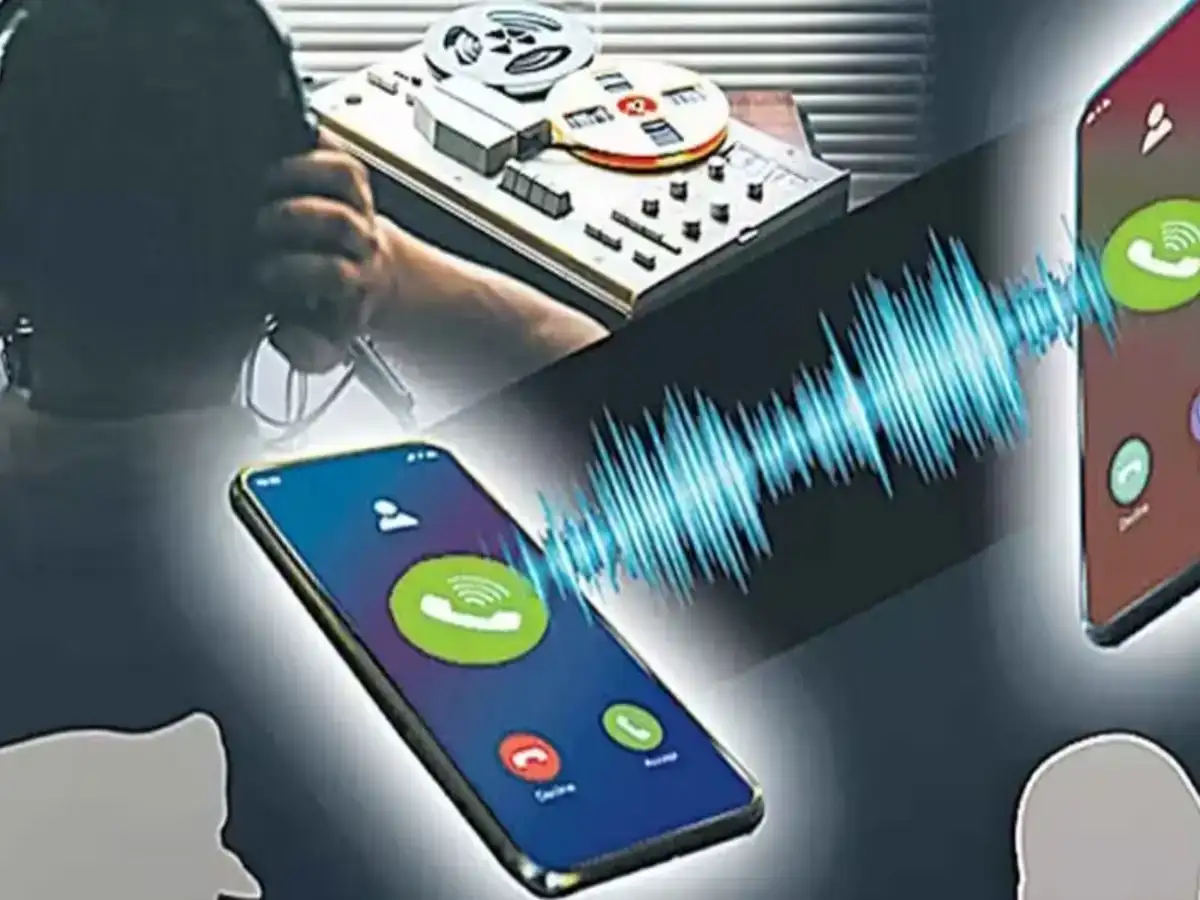
Phone tapping refers to the listening or recording of a person's conversations or activities. This can sometimes occur as part of a legal process, and sometimes as illegal surveillance through spyware or suspicious apps. Certain changes observed on a smartphone can indicate a potential threat, which can be identified early to enhance security.
5 Possible Signs of Phone Tapping or Spyware
Unexplained Overheating and Quick Battery Drain : If your phone overheats or drains faster than normal even when no heavy tasks are being performed, suspicious apps or spyware running in the background could be straining the processor and battery. However, this alone shouldn't be a definitive conclusion that your phone is tapped.
Sudden increase in mobile data: Spy apps or spyware can sometimes send audio files, conversation data, or other information to external servers, increasing data consumption. If you're seeing data drain rapidly despite low internet usage, you should check your app's data usage.
Strange noises during calls: You may hear repeated clicking sounds, echoes of your own voice, or unusual background noises during a conversation. However, these noises can also be caused by network issues or call quality, so don't rely on this as the only evidence
Unknown apps and suspicious messages: Seeing apps on your phone that you didn't download, or receiving suspicious SMS messages with strange codes and letters, can be a cause for concern. It's important to check the list of installed apps and the permissions they've been granted.
Sudden changes in phone performance : Frequent phone hangs, restarts on its own, or unknown apps running in the background are also signs worth noting, although these could be due to simple software bugs or technical reasons.
Smartphone Security Tips
Check Call Forwarding Status: Call forwarding status can be checked by entering *#21# or *#62# into the dialer. However, these codes do not detect phone tapping, and the fact that call forwarding is enabled does not automatically mean the phone is tapped.
Strengthen passwords and 2FA: Change passwords for banking, email, and social media accounts on a secure device and keep two-factor authentication (2FA) enabled.
Keep apps and OS updated: Remove unknown apps and their suspicious permissions and update the phone's operating system regularly.
Lockdown Mode on iPhone: Apple's Lockdown Mode can help iPhone users when they suspect a serious cyber-threat, limiting certain features to reduce the risk of potential attacks. To turn it on, go to Settings > Privacy & Security > Lockdown Mode, select Turn On Lockdown Mode, and restart your phone.
Help from experts and cyber-cell: If you have any strong suspicion, get the device examined by a digital forensic expert and file a complaint with the cybercrime cell.
PC: Navbharat Times