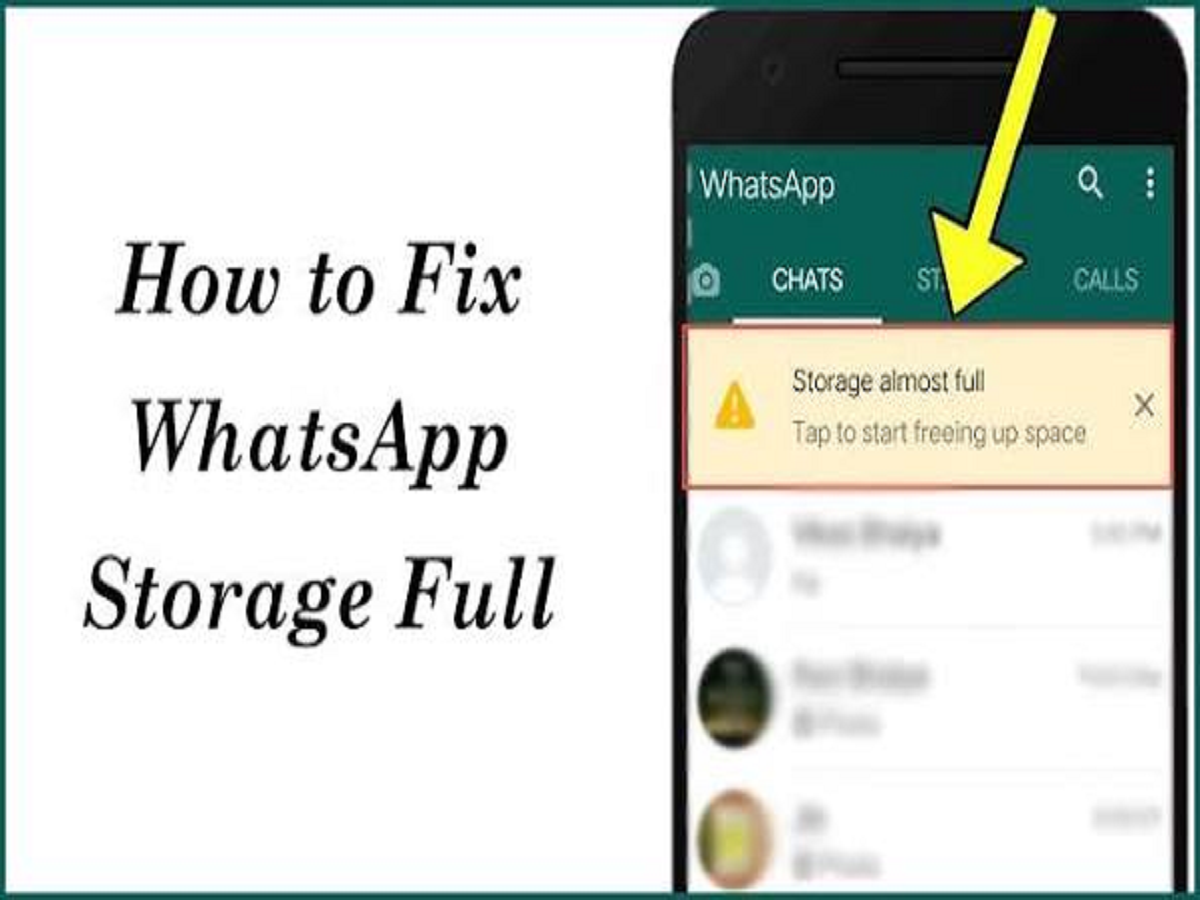
If your smartphone is constantly showing a storage almost full warning, WhatsApp could be one of the reasons. Years of photographs, videos, documents, GIFs and forwarded files can quietly consume several gigabytes of storage.
The good news is that you don't necessarily have to delete your chats to free up space. WhatsApp provides several tools that can help you identify large files and remove unnecessary media while keeping important conversations.
Here are 7 WhatsApp storage tricks worth trying.
1. Find your biggest WhatsApp files
Instead of manually checking every conversation, use WhatsApp's Manage Storage section.
It can help identify chats and media that are taking up the most space.
Large videos are often responsible for a significant portion of WhatsApp storage, so reviewing these files first can quickly recover space.
2. Delete large videos but keep the chat
You don't have to delete an entire conversation just because it contains large files.
WhatsApp allows you to remove selected photographs, videos and documents while keeping the text conversation intact.
Before deleting anything, carefully review the files so you don't accidentally remove something important.
3. Stop unnecessary media from downloading automatically
If you're part of several active groups, your phone may download dozens of photographs and videos that you never actually wanted.
Go to WhatsApp's Storage and data settings and review automatic media-download preferences.
You can limit which types of files download automatically when you're using mobile data, Wi-Fi or roaming.
This can help prevent your storage from filling up again.
4. Stop WhatsApp photos from appearing in your gallery
If you don't want every WhatsApp photograph to appear in your phone's main gallery, you can adjust WhatsApp's media visibility settings.
This doesn't necessarily delete the files from your device, but it can prevent WhatsApp media from cluttering your regular photo gallery.
You can also adjust the setting for individual chats or groups on supported versions.
5. Check your most active groups
Family groups, work groups and large community chats can generate enormous amounts of media.
Open the storage-management section and check which conversations are consuming the most space.
You may discover that one particularly active group is responsible for hundreds of megabytes—or even several gigabytes—of unnecessary media.
6. Back up important photos before deleting them
Before clearing large WhatsApp files, make sure important photographs, videos or documents are stored somewhere else.
You can save important files to your phone's storage, computer or a trusted cloud-storage service.
This is particularly important for documents, receipts, travel photographs and other files that may be difficult to recover later.
7. Review your WhatsApp backup settings
WhatsApp backups can also contain large amounts of media.
Review your backup settings and decide whether you need videos included in your backups.
If your video collection is already safely stored elsewhere, excluding videos from future backups can significantly reduce backup size.
However, remember that backup settings can affect what can be restored if you later reinstall WhatsApp or move to another phone.
Bonus trick: Think twice before deleting "forwarded" files
Not every forwarded photograph or video is useless.
Before deleting media simply because it has been forwarded many times, check whether you've saved anything important from the conversation.
A few minutes of review can prevent an important document or photograph from disappearing permanently.
Why WhatsApp storage keeps filling up
Deleting files once won't solve the problem if WhatsApp continues downloading everything automatically.
The best approach is to combine regular storage cleanup with sensible automatic-download settings.
For example, you could check your WhatsApp storage once every few weeks and remove large files that you no longer need.
Bottom line
If WhatsApp is consuming too much space on your phone, you don't need to delete entire conversations.
Use Manage Storage, automatic-download controls, media visibility settings and backup preferences to take control of your WhatsApp storage.
The biggest space-saving move is usually simple: stop unnecessary videos and photographs from downloading automatically in the first place.