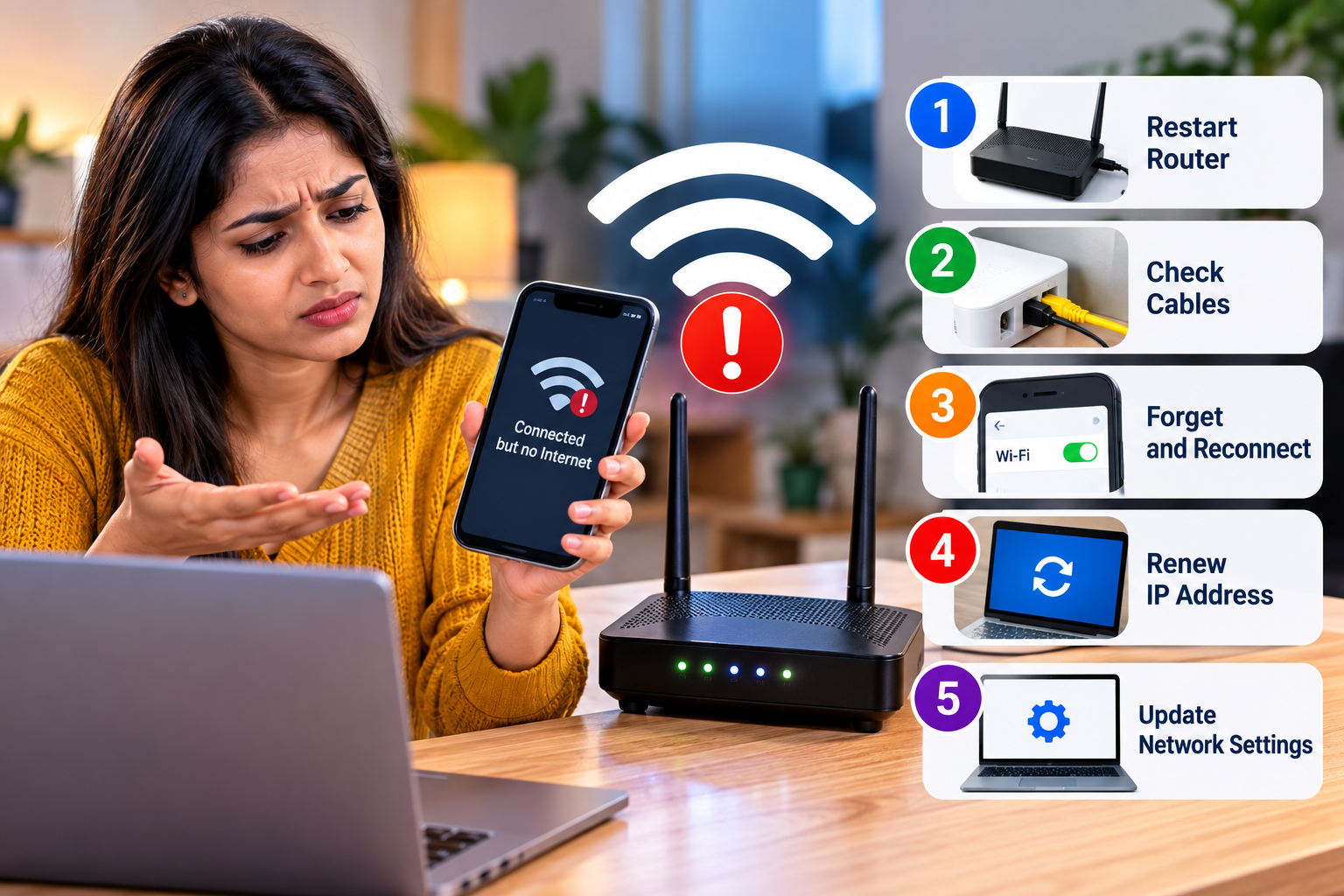
Your smartphone or laptop shows that it is successfully connected to Wi-Fi, but websites refuse to load and apps remain offline. It is a common and frustrating problem, often accompanied by messages such as “Connected, no internet” or “No internet access.”
A Wi-Fi connection does not necessarily mean that your device has working internet access. Your phone or computer may be communicating successfully with the router while the router itself is unable to reach the internet.
According to the supplied information, temporary router problems, incorrect network settings and IP-related issues are among the possible reasons.
Before contacting your internet service provider, you can try these five simple troubleshooting methods.
1. Restart Your Wi-Fi Router and Modem
The first thing to try is restarting your networking equipment.
Temporary connectivity problems can sometimes be resolved by turning the router off and starting it again.
Switch off the router or disconnect its power plug. Wait around 10 to 15 seconds, then reconnect the power and allow the router to start again.
Do not expect the internet to return immediately after switching the router back on. The equipment may need a little time to reconnect to your internet service.
Once it has restarted, reconnect your phone or laptop and check whether the internet is working.
If you have a separate modem and Wi-Fi router, make sure both devices are powered and operating normally.
2. Forget the Wi-Fi Network and Connect Again
If restarting the router doesn't solve the problem, remove the saved Wi-Fi connection from your device and set it up again.
On your smartphone or computer, open Wi-Fi Settings and find the network you are currently using.
Select the network and choose “Forget” or “Remove.”
Next, turn Wi-Fi off and back on. Select the network again and enter the correct Wi-Fi password.
This creates a fresh connection between your device and the Wi-Fi network and may resolve problems associated with the previously saved connection settings.
Make sure you know the Wi-Fi password before selecting “Forget,” because you will need to enter it again.
3. Turn Airplane Mode On and Off
Smartphone users can also try a quick Airplane Mode reset.
Turn Airplane Mode on for around 10 seconds and then switch it off.
Airplane Mode temporarily disables wireless connections on the device, including Wi-Fi, mobile connectivity and Bluetooth.
Once Airplane Mode has been turned off, reconnect to your Wi-Fi network and check the internet connection again.
This simple step can sometimes help when the problem is related to a temporary wireless connectivity issue on the phone.
4. Reset Network Settings
If your device still connects to Wi-Fi but cannot access the internet, resetting its network settings is another option.
Depending on your smartphone, the setting may be available under a menu similar to:
Settings > System / General Management > Reset Options > Reset Network Settings
Menu names can differ between Android brands, operating-system versions and other devices.
There is one important point to remember before performing this reset.
Resetting network settings can remove saved Wi-Fi networks and passwords and reset Bluetooth and mobile-network-related settings.
You may therefore have to reconnect to previously saved Wi-Fi networks and pair Bluetooth devices again afterward.
For that reason, this option is better used after simpler troubleshooting methods have failed.
5. Check Your Device's Date and Time
An incorrect date or time on your phone or laptop can sometimes interfere with secure internet connections.
Check the device's date, time and time zone.
Where available, enable an option such as “Automatic Date & Time” so that your device maintains the correct information automatically.
After correcting the time settings, try opening a website or internet-based app again.
How to Find Out Whether the Problem Is Your Device or Wi-Fi
A useful troubleshooting step is to check whether other devices connected to the same Wi-Fi network can access the internet.
For example, if your phone says “Connected, no internet,” check the same Wi-Fi connection using another phone or laptop.
If the internet works on other devices, the problem is more likely to be associated with the affected device or its network settings.
If none of the connected devices has internet access, the issue may instead involve the router, modem or internet service itself.
This simple comparison can help narrow down the cause before you start changing settings.
Don't Reset Everything Immediately
A network reset can be useful, but it should not necessarily be the first troubleshooting step.
Start with the simplest options:
-
Restart the router.
-
Reconnect the device to Wi-Fi.
-
Try Airplane Mode on a phone.
-
Check date and time.
-
Reset network settings if the problem continues.
This approach can help resolve temporary problems without unnecessarily deleting saved network information.
Still No Internet? Contact Your ISP
If you have tried all these methods and multiple devices still cannot access the internet through the same Wi-Fi network, the problem may not be inside your phone or laptop.
Your internet service provider could be experiencing an outage or another service-related issue.
In that situation, contact your Internet Service Provider (ISP) and ask whether there is an outage or connection problem affecting your service.
You can also check the status lights on your router or modem. An unusual warning light may indicate a connection problem, although the meaning of individual lights varies between router models.
Wi-Fi Connected but No Internet: Quick Fixes
If your phone or laptop displays “Connected, no internet,” don't immediately assume that the device or router is damaged.
Start by restarting your router and reconnecting to the Wi-Fi network. Smartphone users can also toggle Airplane Mode, while persistent problems may require a network-settings reset.
Checking the device's date and time can also help rule out connectivity problems involving secure connections.
Most importantly, test the Wi-Fi on another device. If every device connected to the router is offline, contacting your ISP may be the next appropriate step.
Note: Settings and menu names can vary depending on the smartphone manufacturer, computer operating system and software version. Resetting network settings may remove saved Wi-Fi passwords and Bluetooth connections, so users should keep the required credentials available before proceeding.