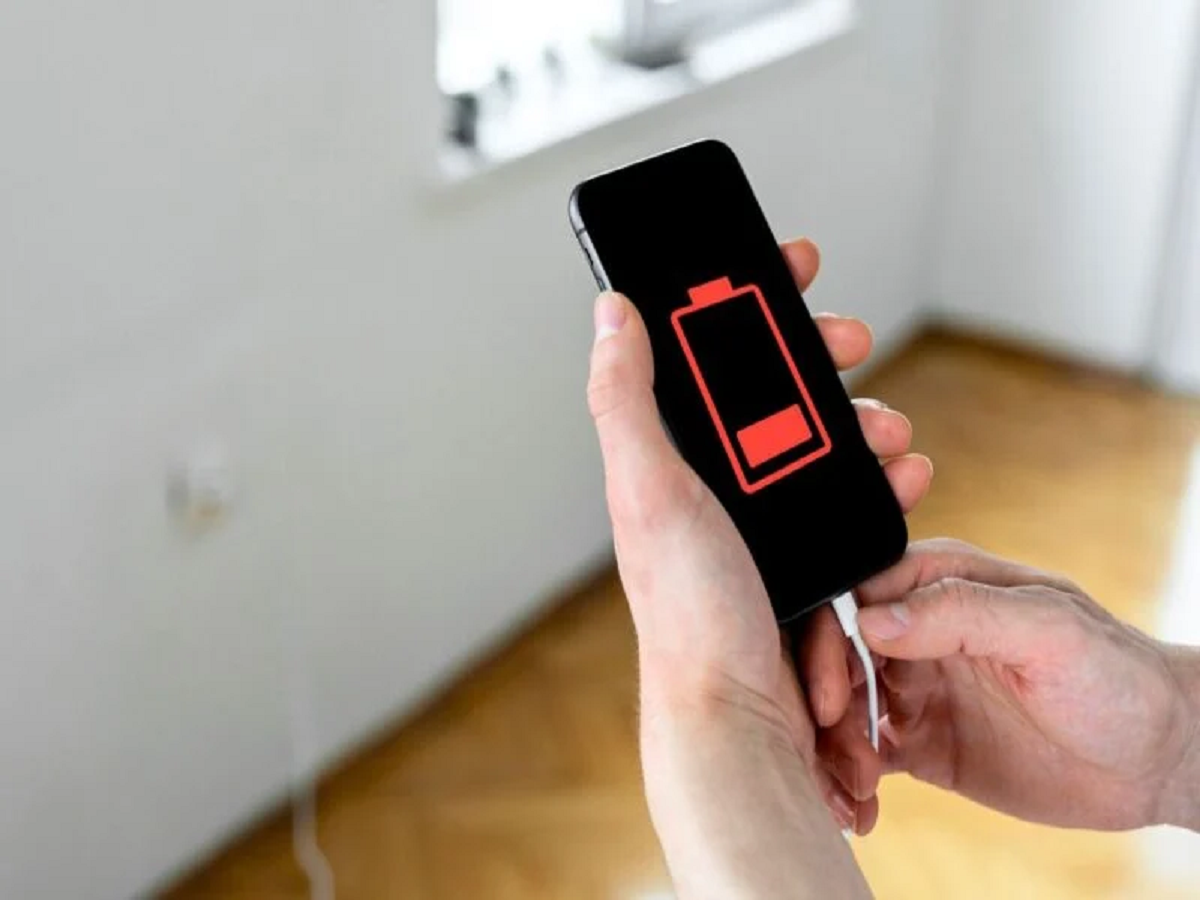
Does your smartphone battery drop from 100% to 30% before the day is over? You might assume that your battery has become old or damaged, but that is not always the reason. Several everyday settings, background activities and charging habits can increase battery consumption without you noticing.
Modern smartphones come with powerful processors, bright displays and applications that constantly refresh information. While these features make phones more convenient, they can also consume significant amounts of power. The good news is that a few adjustments may help your phone last longer between charges.
Here are seven settings and habits worth checking before you consider replacing your battery.
1. Stop Unnecessary Apps From Running in the Background
Some applications continue refreshing information even when you are not actively using them. Social media platforms, shopping apps and other services may update content or synchronise data in the background.
On Android, open Settings and look for Battery Usage to identify which applications consume the most power. Depending on your phone, you may be able to restrict background activity for selected apps.
On an iPhone, go to Settings, select General and open Background App Refresh. Turn it off for applications that do not need frequent updates.
Avoid restricting essential messaging or navigation apps if you depend on their background functions.
2. Reduce Your Screen Brightness
Your smartphone's display can be one of its biggest sources of battery consumption, particularly when brightness is high.
If you frequently use your phone outdoors or keep the brightness near maximum indoors, the display may use more power than necessary.
Enable adaptive or automatic brightness so the screen adjusts to surrounding light. You can also reduce the screen timeout so the display switches off quickly when you stop using the device.
For OLED displays, using dark mode may reduce power consumption in certain situations because dark pixels require less energy to illuminate.
3. Check Which Apps Are Consuming the Most Battery
Instead of guessing which setting is responsible, check your phone's battery statistics.
Android devices generally provide an app-by-app breakdown under Settings and Battery. iPhones offer similar information under Settings and Battery.
Look for applications consuming unusually high amounts of power relative to how often you use them.
A navigation app using significant battery during a long journey may be behaving normally. However, an application consuming excessive power despite minimal use could be worth updating, restricting or reinstalling.
Battery statistics help you identify the actual problem rather than disabling features unnecessarily.
4. Use Wi-Fi When It Is Available
Your phone may consume more power when maintaining a weak mobile network connection, particularly in areas with poor coverage.
If you are in a location with reliable Wi-Fi, connecting to it may help reduce battery consumption compared with maintaining a weak cellular connection. The actual difference depends on network conditions and how you use your phone.
If you are travelling through an area with no cellular signal and do not need calls or mobile data, Airplane Mode can help conserve power. Remember that it disables cellular connectivity until you turn it off or selectively re-enable supported connections.
5. Turn Off Unnecessary Always-On Features
Features such as an always-on display, live wallpapers and frequent location updates can contribute to battery drain.
You do not necessarily need to disable every feature. Instead, review which ones provide genuine value.
For example, turning off an always-on display may help some phones last longer. Limiting location access for applications that do not need it can also reduce unnecessary activity.
Similarly, disabling unused Bluetooth or hotspot connections may help in certain circumstances, although modern phones are designed to manage these functions efficiently.
6. Avoid Extreme Heat While Charging
Heat is one of the important factors affecting lithium-ion battery health.
Leaving your phone in direct sunlight, charging it under a pillow or using demanding applications while it is already hot can increase its temperature. Repeated exposure to excessive heat can accelerate battery degradation over time.
To protect your phone, charge it in a well-ventilated place and avoid covering it with blankets or other materials that trap heat.
Use a compatible charger and cable, and pay attention to temperature warnings. If your phone becomes unusually hot during ordinary charging, investigate the cause rather than ignoring it.
7. Enable Optimised Charging or Battery Protection
Many modern smartphones include charging features designed to reduce battery wear.
On supported iPhones, Optimised Battery Charging can reduce the time the battery spends fully charged. Depending on the model and software version, charging-limit options may also be available.
Many Android manufacturers provide similar features under names such as Battery Protection, Charging Limit or Optimised Charging.
These features can help preserve long-term battery health, although the available options vary by device.
If you regularly charge your phone overnight, checking these settings may be worthwhile.