Your Wi-Fi May Be Slower Than It Should Be: 7 Simple Router Changes That Can Improve Your Internet
- byPranay Jain
- 08 Aug, 2026
A slow internet connection is not always caused by your broadband provider. Sometimes the problem is sitting inside your own home: the Wi-Fi router. As more phones, laptops, smart TVs, cameras and other devices connect to the same network, an incorrectly positioned or poorly configured router can significantly affect the browsing experience.
Before calling your internet service provider, there are several simple things you can check yourself.
Start With the Router's Location
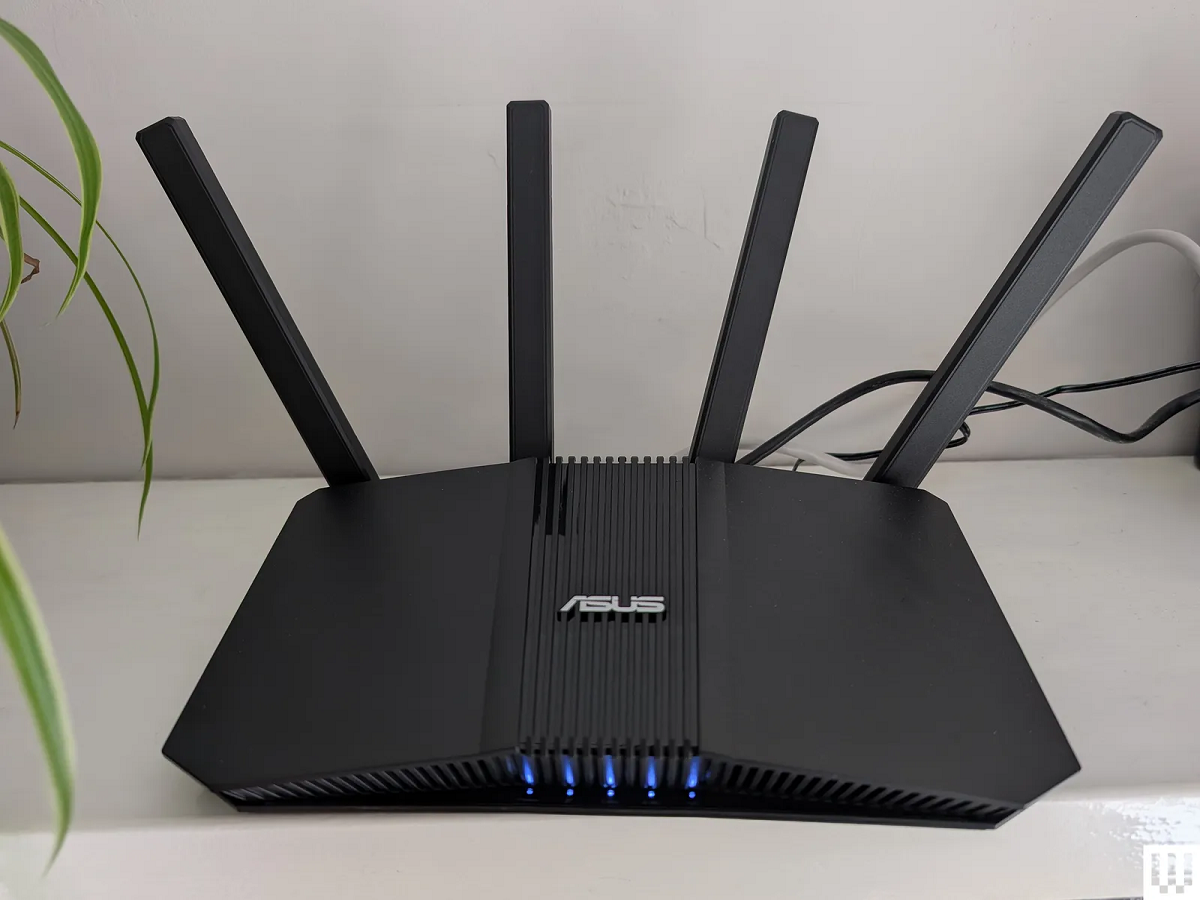
Where you keep your router can have a surprisingly large impact on Wi-Fi performance. Placing it inside a cupboard, behind a television, near a large metal object or on the floor can weaken the wireless signal.
Ideally, keep the router in an open and relatively central location. If possible, place it at some height rather than directly on the floor. This can help distribute the signal more evenly throughout the house.
Use the 5GHz Network When You Are Nearby
Many modern routers broadcast both 2.4GHz and 5GHz Wi-Fi networks. The 5GHz band can generally provide faster speeds and lower interference at shorter distances.
If your laptop or phone is relatively close to the router, connecting to the 5GHz network may provide better performance. However, 2.4GHz can be more useful when you are farther away because it generally travels through walls better.
Some newer routers combine both bands under a single Wi-Fi name and automatically select the appropriate band.
Restarting the Router Can Actually Help
If your internet has suddenly become unstable, a simple router restart is worth trying. Turn the router off, wait for a short period and then switch it back on.
This can resolve temporary software or connection problems. However, restarting the router repeatedly should not be treated as a permanent solution if the connection keeps dropping.
Check Which Devices Are Connected
An unexpectedly slow connection can sometimes be caused by too many devices using the network simultaneously.
Open your router's administration page or app and check the connected-device list. If you find an unfamiliar phone, computer or other device, change your Wi-Fi password and reconnect only your own devices.
This is also a good way to discover whether an old device is still connected and consuming bandwidth in the background.
Keep the Router's Firmware Updated
Routers, like smartphones and computers, receive firmware updates. These updates can improve performance, fix bugs and address security vulnerabilities.
If your router manufacturer provides an update facility, check whether newer firmware is available. Some newer routers can install updates automatically.
Don't Ignore Your Internet Plan's Speed
Sometimes everything inside the house is working correctly, but the broadband plan itself is the limiting factor.
If multiple people are simultaneously streaming 4K video, downloading large files, gaming online and attending video meetings, the available bandwidth can quickly become saturated.
Run a speed test near the router using a device connected to Wi-Fi, and if possible compare it with a wired Ethernet connection. A large difference can indicate a Wi-Fi-related problem rather than an issue with the broadband line.
Older Routers Can Become the Weak Link
If your router is several years old, it may not be capable of delivering the speeds available from a modern broadband connection.
Newer Wi-Fi standards can offer better capacity and improved performance when multiple devices are connected simultaneously. However, buying a new router should be considered only after checking whether your existing ISP equipment supports replacement or bridge-mode configurations.
A Few Small Changes Can Make a Big Difference
Before upgrading your broadband plan, try improving the basics: move the router to a better location, choose the appropriate Wi-Fi band, check connected devices, update the firmware and test the actual internet speed.
If the connection remains slow or repeatedly disconnects even when a device is connected directly to the router with Ethernet, the problem may be with the broadband line, modem/ONT or ISP rather than your Wi-Fi settings.