TECH
iPhone Storage Full? 8 Hidden Tricks to Free Up Space Without Deleting Your Important Photos and Videos
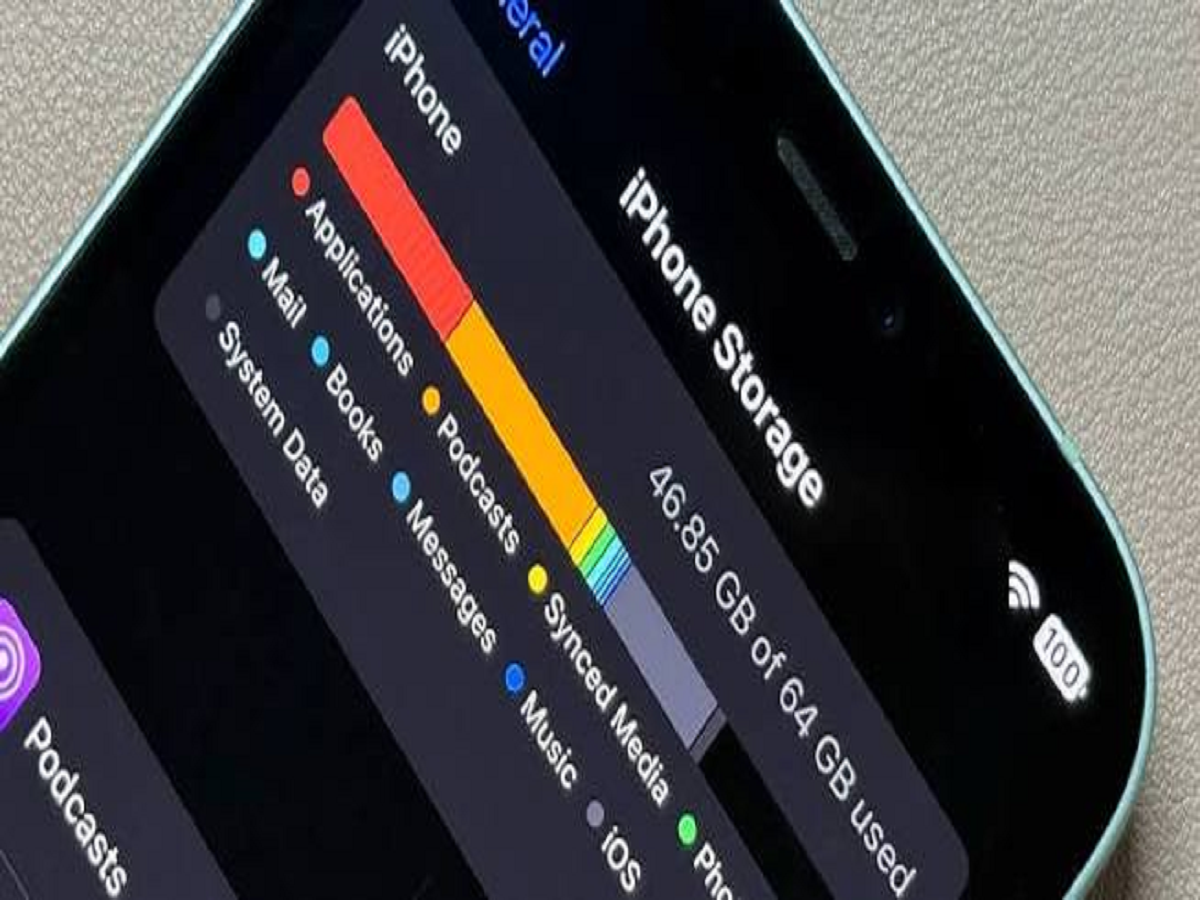
Running out of storage on an iPhone can be frustrating. You may suddenly receive a notification that your storage is almost full when trying to capture a photo, record a video or install an application.
While deleting photos and applications is the most obvious solution, several other options can help recover valuable storage space without losing important memories.
Here are eight useful tricks every iPhone user should know.
1. Check What Is Consuming Your Storage
Before deleting anything, identify which files and applications are using the most space.
Go to Settings, select General and tap iPhone Storage. You will see a breakdown of storage usage by applications, photos, messages and other categories.
This helps you identify where you can free up space most effectively.
2. Enable Optimise iPhone Storage
Photos and videos can occupy a significant portion of your iPhone's storage.
If you use iCloud Photos, enable the Optimise iPhone Storage option under Settings, Photos.
Your original, full-resolution photos and videos can be stored in iCloud, while smaller versions remain on your device. You can download the originals whenever required.
Remember that this feature requires sufficient iCloud storage.
3. Delete Unnecessary WhatsApp Media
WhatsApp images, videos and forwarded files can gradually consume several gigabytes of storage.
Open WhatsApp, go to Settings, select Storage and Data, and tap Manage Storage.
You can review large files and media shared across conversations and delete unnecessary items without removing entire chats.
4. Offload Unused Applications
Some applications occupy considerable storage even when you rarely use them.
The iPhone offers an Offload App feature that removes the application itself while retaining its documents and data.
Go to Settings, General and iPhone Storage, select an application and tap Offload App.
You can reinstall it later and continue using the retained data, provided the app remains available.
5. Clear Your Safari Browsing Data
Safari stores browsing history, cookies and website data over time.
To clear this information, open Settings, select Apps, choose Safari and use the option to clear browsing history and website data.
Be aware that this may sign you out of websites and remove certain browsing information.
6. Review Downloaded Videos and Music
Streaming applications such as Netflix, YouTube and music services allow users to download content for offline viewing or listening.
These downloads can consume considerable storage.
Open the relevant application and review your downloaded content. Remove movies, episodes and songs that you no longer need offline.
7. Remove Large Message Attachments
Photos, videos and documents received through the Messages application can also occupy significant space.
Go to Settings, General and iPhone Storage, then review the Messages category.
You can identify and remove large attachments that are no longer required.
8. Restart Your iPhone and Install Updates
Temporary files and software-related issues can sometimes affect storage reporting and device performance.
Restarting your iPhone may help resolve temporary problems. Also, check for available iOS updates through Settings under General and Software Update.
However, restarting does not automatically remove all cached files or free a significant amount of storage.
Bonus Tip: Back Up Important Files Before Deleting Anything
Before removing photos, videos or documents, make sure you have a reliable backup.
You can use iCloud, a computer or another trusted storage service. Always verify that important files have been backed up successfully before deleting their original copies.
Final Words
A full iPhone storage notification does not always mean you need to delete your favourite photos or buy a new device. Reviewing WhatsApp media, offloading unused applications, managing downloads and optimising photo storage can help recover valuable space.
Make it a habit to check your iPhone Storage regularly so that you have enough room for new photos, videos and applications.