TECH
Laptop Running Slowly? 9 Simple Windows Tricks That Can Make Your PC Faster Without Spending Money
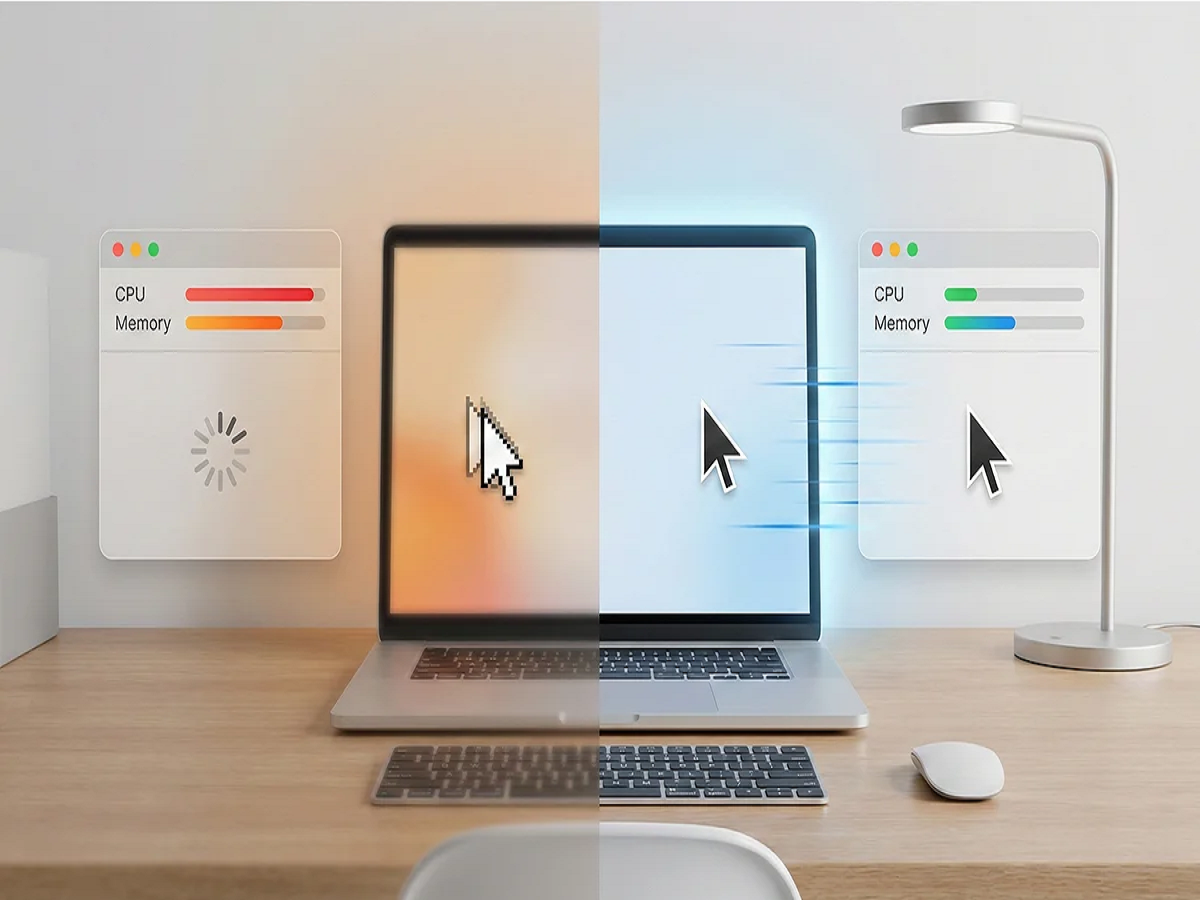
A slow laptop can turn even simple tasks into frustrating experiences. Applications take longer to open, the system freezes unexpectedly and switching between browser tabs becomes difficult.
While many people immediately consider buying a new laptop or upgrading their hardware, the problem may actually be related to unnecessary "Adjust the appearance and performance of Windows" and select the visual effects settings. You can choose a performance-focused configuration or disable selected animations.
5. Update Windows and Device Drivers
Outdated software can sometimes cause performance problems, compatibility issues and system errors.
Open Settings, select Windows Update and check for available updates.
You should also check for relevant driver updates through your laptop manufacturer's official support application or website.
6. Uninstall Applications You Never Use
Unused applications occupy storage and may sometimes run 's upgrade compatibility.
Final Words
A slow laptop does not always mean it is time to replace your computer. Disabling unnecessary startup applications, freeing storage, updating software and checking for malware can improve everyday performance.
If these steps do not solve the problem, consider checking the laptop's RAM, storage drive and cooling system. Identifying the actual cause is better than spending money on unnecessary upgrades.