Nowadays, we use a variety of apps on our phones. Many of these apps require camera, microphone, location, and other permissions. But do you know which apps have access to your phone's camera and microphone? You can check this yourself with a few simple steps.
How to check on Android phone
If you use an Android phone, open Settings and go to Privacy or Security & Privacy. Here, you'll find the Privacy Dashboard option. In the Privacy Dashboard, you can see which apps have used sensitive permissions like Camera and Microphone in the past.
Now tap Camera or Microphone. Here you can find information about the apps that have accessed these permissions. If you see an app that doesn't need Camera or Microphone access, you can turn off its permission.
You can also manage Camera and Microphone permissions by going to Settings > Privacy > Permission Manager.
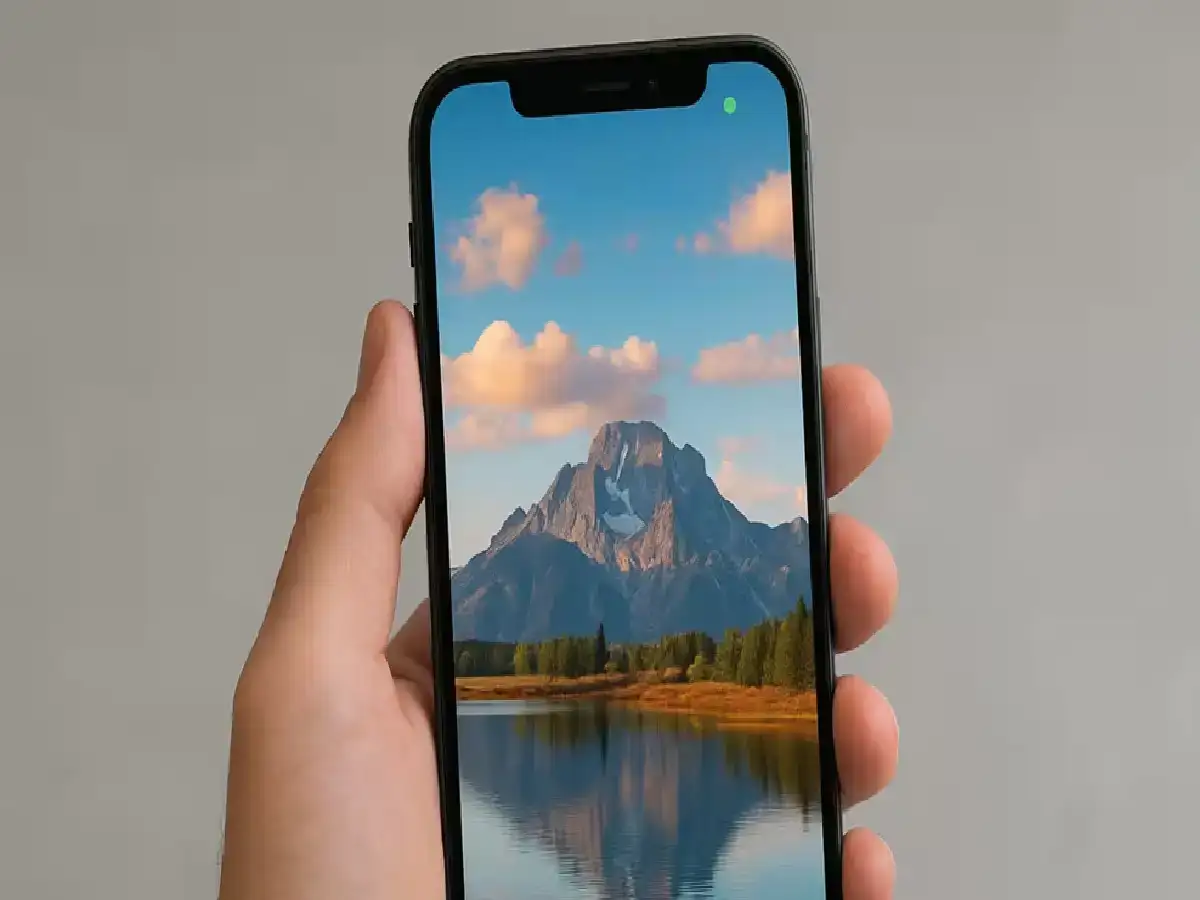
What to do if you see a green indicator on your phone?
On many devices running Android 12 and later, when an app is using the camera or microphone, a green indicator appears at the top of the screen. You can see which app or service is using the camera or microphone by tapping this indicator.
This doesn't necessarily mean someone is spying on you. Sometimes the camera or microphone may be used for a simple function.
How to check in iPhone?
iPhone users can go to Settings > Privacy & Security and tap Camera or Microphone. This will display a list of apps that have access to these features. You can turn any app's permissions on or off as needed.