TECH
Your Wi-Fi Router Could Be Making Your Internet Slower! 7 Simple Tricks to Boost Your Speed Without Buying a New Connection
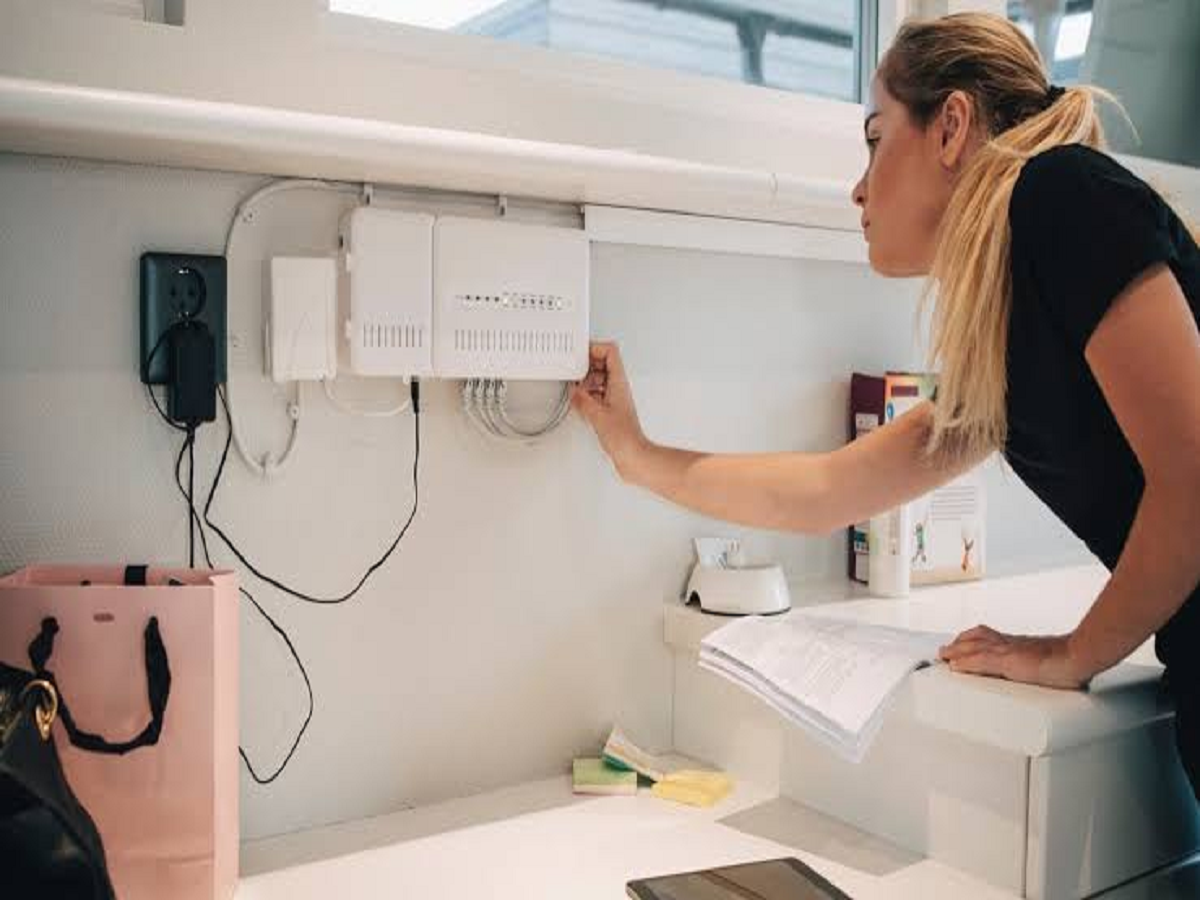
Imagine paying for a high-speed internet connection but still struggling to watch videos without buffering, download files quickly or attend online meetings without interruptions. Before blaming your internet service provider, you might want to take a closer look at your Wi-Fi router.
Many people assume that slow internet automatically means they need a more expensive broadband plan. However, the actual problem could be related to router placement, connected devices, outdated settings or interference from nearby electronic equipment.
Your Wi-Fi router plays a crucial role in distributing internet connectivity throughout your home. Even a powerful broadband connection may deliver disappointing results if the router is not configured properly.
Here are seven practical tricks that could help improve your Wi-Fi performance without immediately spending money on a new connection.
1. Stop Hiding Your Router Inside a Cupboard
One of the biggest mistakes people make is placing their Wi-Fi router inside a closed cupboard, behind a television or in a corner of the house.
Wi-Fi signals travel through walls and other obstacles, which can reduce their strength and coverage.
Ideally, place your router in an open and central location. Keeping it slightly elevated, such as on a shelf, can also help distribute signals more effectively.
Avoid placing it close to thick concrete walls, metal objects and large electronic appliances.
2. Switch Between 2.4GHz and 5GHz Wi-Fi Bands
Did you know that your router may offer two different Wi-Fi frequency bands?
The 2.4GHz band generally provides better coverage and can travel farther through walls. However, it may experience more interference from neighbouring networks and household devices.
The 5GHz band usually offers higher speeds over shorter distances, making it useful for activities such as video streaming, online gaming and large downloads.
If your router supports both bands, connect devices according to your requirements. Use 2.4GHz for devices located farther away and 5GHz for devices closer to the router.
3. Check How Many Devices Are Connected to Your Network
Your internet connection may become slower when several devices are using bandwidth simultaneously.
Smart televisions, smartphones, laptops, gaming consoles, security cameras and smart home devices can all connect to the same Wi-Fi network.
Open your router's administration page or official application and check the connected-device list.
Remove unknown devices and disconnect gadgets that are not being used. If you notice unfamiliar connections, consider changing your Wi-Fi password and using WPA2 or WPA3 security wherever supported.
4. Restart Your Router Occasionally
A simple router restart can sometimes resolve temporary connectivity problems.
Like other electronic devices, routers can experience software glitches, temporary connection issues and performance instability.
Switch off your router, wait approximately 30 seconds and turn it back on. Allow it a few minutes to reconnect to the internet.
However, restarting your router every day is generally unnecessary. If slow speeds keep returning, investigate the underlying problem rather than relying on repeated restarts.
5. Change Your Wi-Fi Channel to Avoid Interference
If you live in an apartment or a densely populated neighbourhood, several nearby routers may be operating on overlapping Wi-Fi channels.
This can create interference and affect wireless performance, particularly on the 2.4GHz band.
Many modern routers automatically select suitable channels, but some devices allow users to change them manually.
You can use a Wi-Fi analyser application to identify crowded channels and select a less congested option through your router settings.
For 2.4GHz networks, channels 1, 6 and 11 are commonly used because they do not overlap with one another under standard channel spacing.
6. Update Your Router's Firmware
Most people regularly update their smartphones but rarely check whether their Wi-Fi router has received a software update.
Router manufacturers release firmware updates to improve security, fix technical problems and sometimes enhance network performance.
Visit your router manufacturer's official website or use its management application to check for available updates.
Always download firmware designed for your exact router model and follow the manufacturer's installation instructions. Avoid interrupting the update process.
7. Use an Ethernet Cable for Devices That Need Stable Internet
Wi-Fi is convenient, but a wired connection can often provide more consistent performance.
If you regularly play online games, transfer large files or attend important video conferences, consider connecting your desktop computer or gaming console directly to the router using an Ethernet cable.
A wired connection avoids many of the wireless interference and signal-strength problems that can affect Wi-Fi.
It is particularly useful for devices that remain in one place and require a stable connection.
When Should You Actually Buy a New Wi-Fi Router?
If you have tried these methods and still experience frequent disconnections or poor coverage, your router may be outdated or unsuitable for your internet plan.
Older routers may not support newer Wi-Fi standards or deliver the speeds required by modern devices.
When purchasing a replacement, consider Wi-Fi 6 or Wi-Fi 6E compatibility, depending on your devices and requirements. Also check the router's supported internet speed, coverage and number of connected devices.
A mesh Wi-Fi system may be a better option for larger homes where a single router cannot provide reliable coverage in every room.
Final Thoughts
Slow internet does not always mean you need to upgrade your broadband plan. Sometimes, the solution is as simple as moving your router to a better location, selecting the right frequency band or updating its software.
Before spending money on a faster connection or expensive networking equipment, try these simple improvements.
You might be surprised by how much better your existing Wi-Fi network can perform with just a few adjustments.